A coaching journal: your notes, private or shared with clients
Session notes, photos, videos and voice notes in folders for a client or squad. Private, your team's, or shared with clients and parents. Free.
· Updated
What did you work on last week? What did you agree with their mum? When is the squad's round robin? The journal on UNAFFI keeps your notes in folders: about a client, a squad, or anything else. Write how a session went, add photos, a video or a voice note, find it all again before the next one, and share a folder with your clients or their parents when they should see it: they write back, reply and react from their UNAFFI account.
1. Folders about anyone
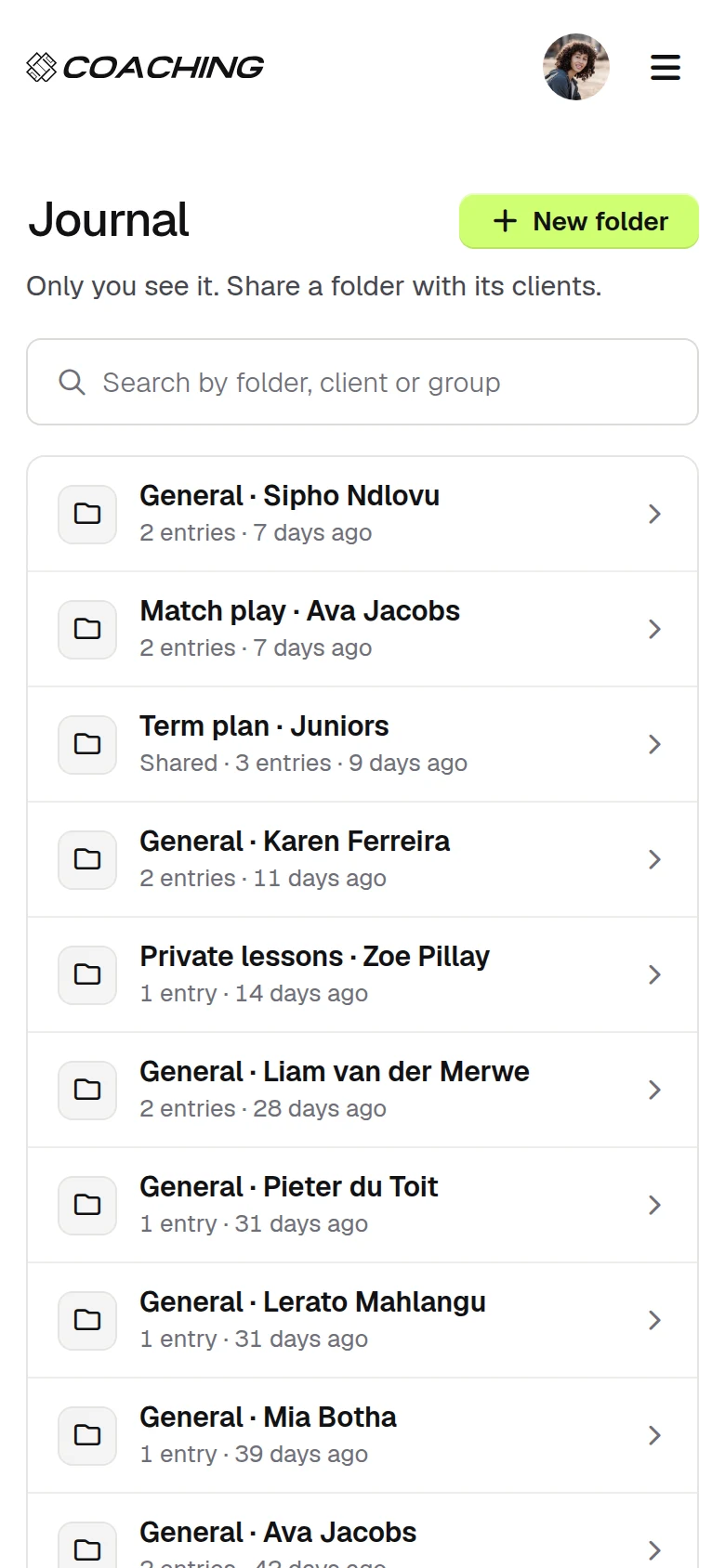
Press Journal in the menu to see all your folders, the most active first, each with who it's about: "Term plan - Juniors", "Match play - Ava Jacobs". Search them by a folder's name, a client or a group. Press New folder to make one: give it a name and, if you like, who it's about (clients, groups, or both). Settings, at the top of the folder, changes them later.
A folder about a group follows it: someone who joins your Juniors is in the juniors' folders from then on, and someone who leaves is out of them. A folder about nobody is just yours, for drills, plans or anything else.
2. Write as you go
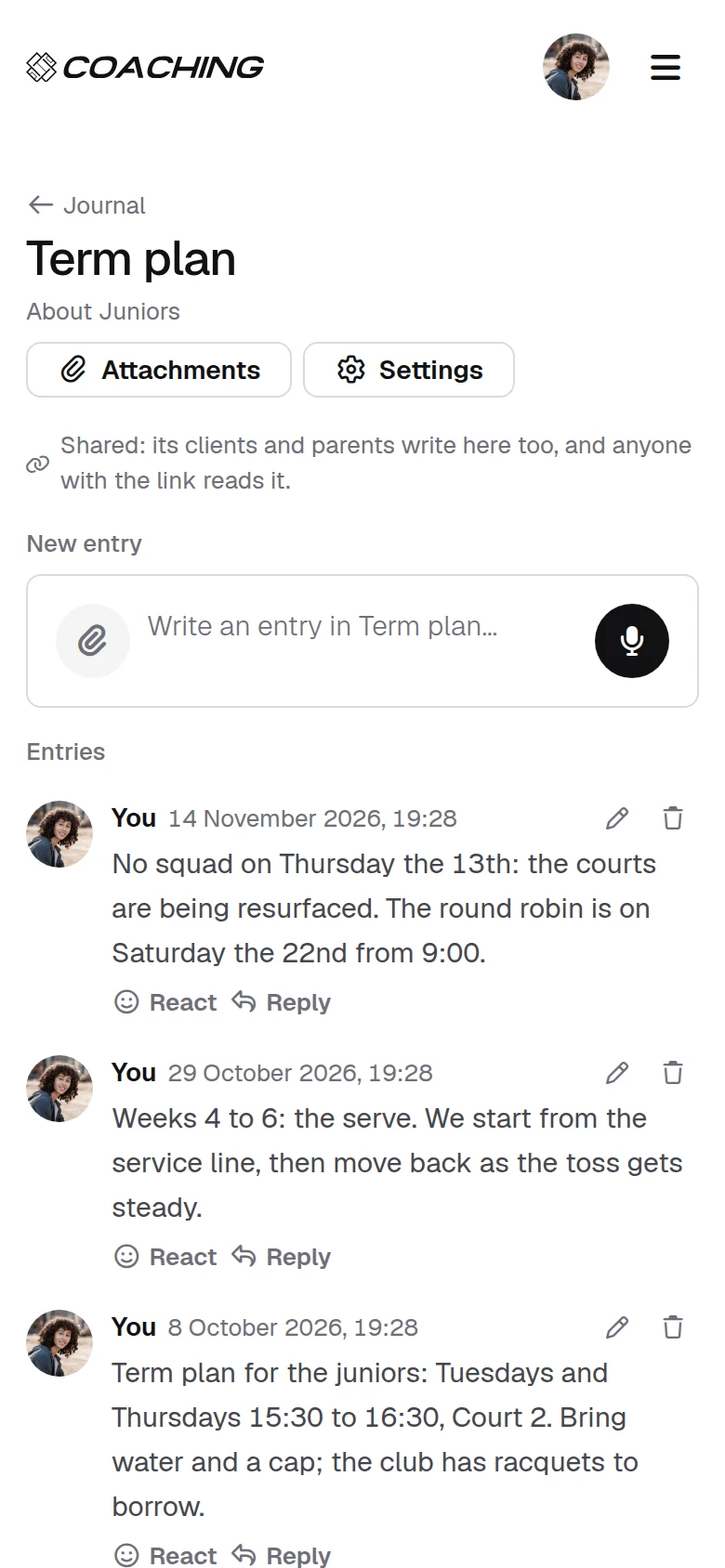
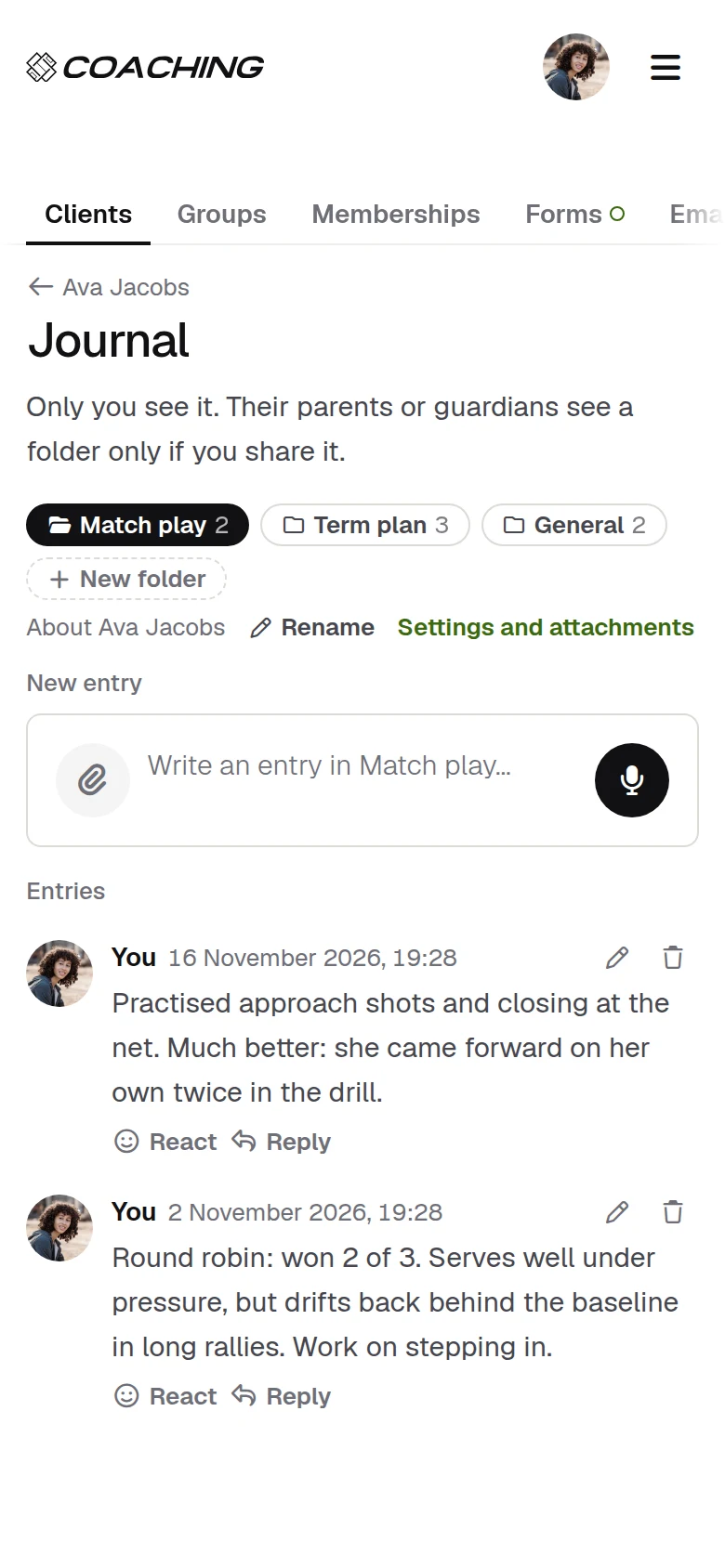
Open a folder: its entries read like a team chat, newest first, each with the writer's photo, their name and when. Type an entry and press Enter to save it, or tap the round button on a phone. Shift and Enter (Return on a phone) starts a new line. An entry can be up to 2,000 characters: a quick line after a session, or a proper write-up of someone's goals for the term.
Add to any entry with the paperclip: Take photo, Record video (up to 3 minutes), Photo or video from your gallery, a Voice note (up to 10 minutes) or a Document, like a PDF or a spreadsheet. With nothing typed, the round button records a voice note, as on WhatsApp. A photo of a grip, a clip of their serve, or your thoughts on the drive home says more than a paragraph.
Files upload as you add them. Photos are made smaller, and videos and voice notes are made ready to play on any phone. Tap a photo or video to see it full screen.
3. Yours, or your team's
On your own, every folder is yours alone. In a team, you choose when you make a folder: the team sees it, with who wrote each entry, or only you do. A folder's Settings say which, under Who sees it. Press Open to the team there to share a private folder with the team later, but a team folder stays the team's.
4. Share with clients and parents
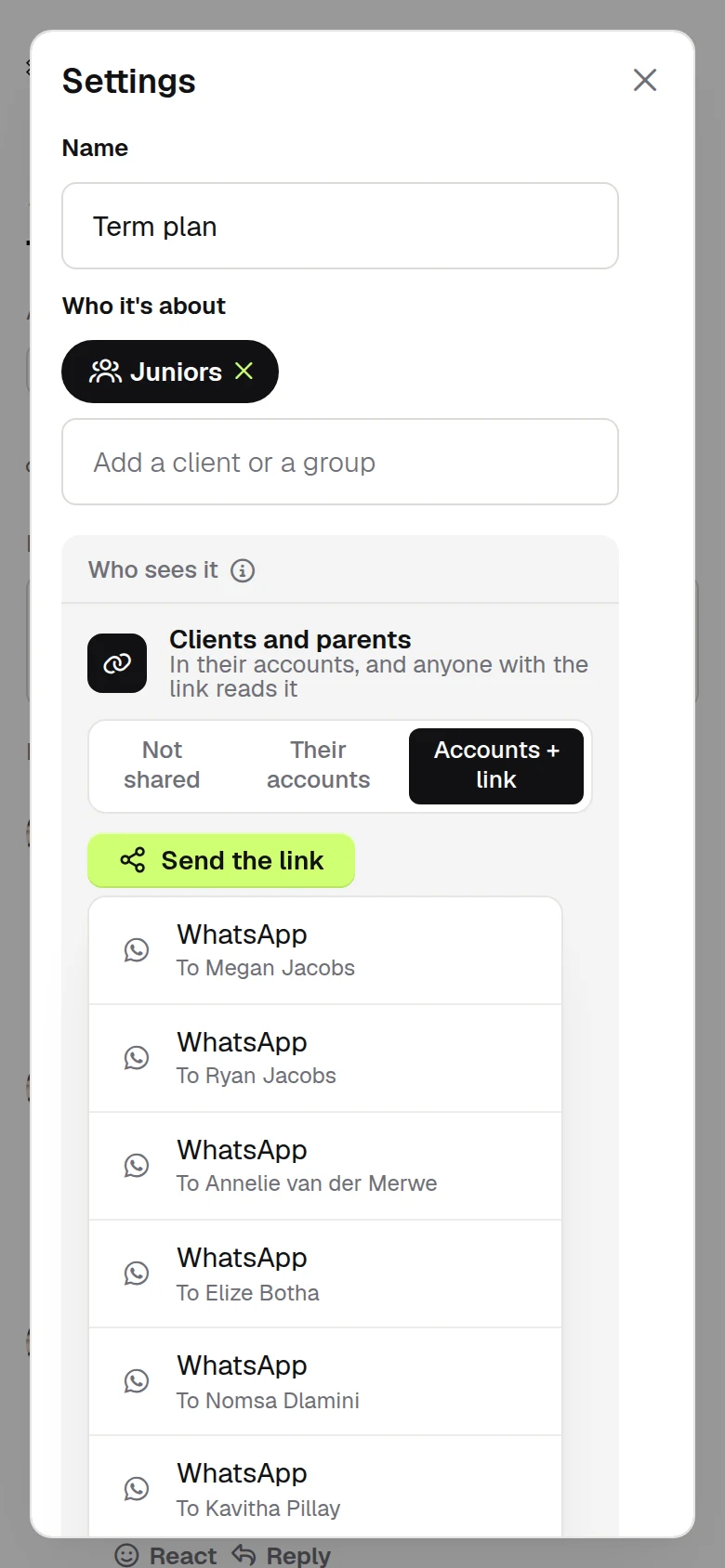
When a client should see a folder, a squad's term plan, say, open its Settings and pick how under Who sees it, beside Clients and parents:
- Their accounts: they read it in their UNAFFI account, under Journal, and write back. Email them sends each one their own link to link their account; it opens the folder.
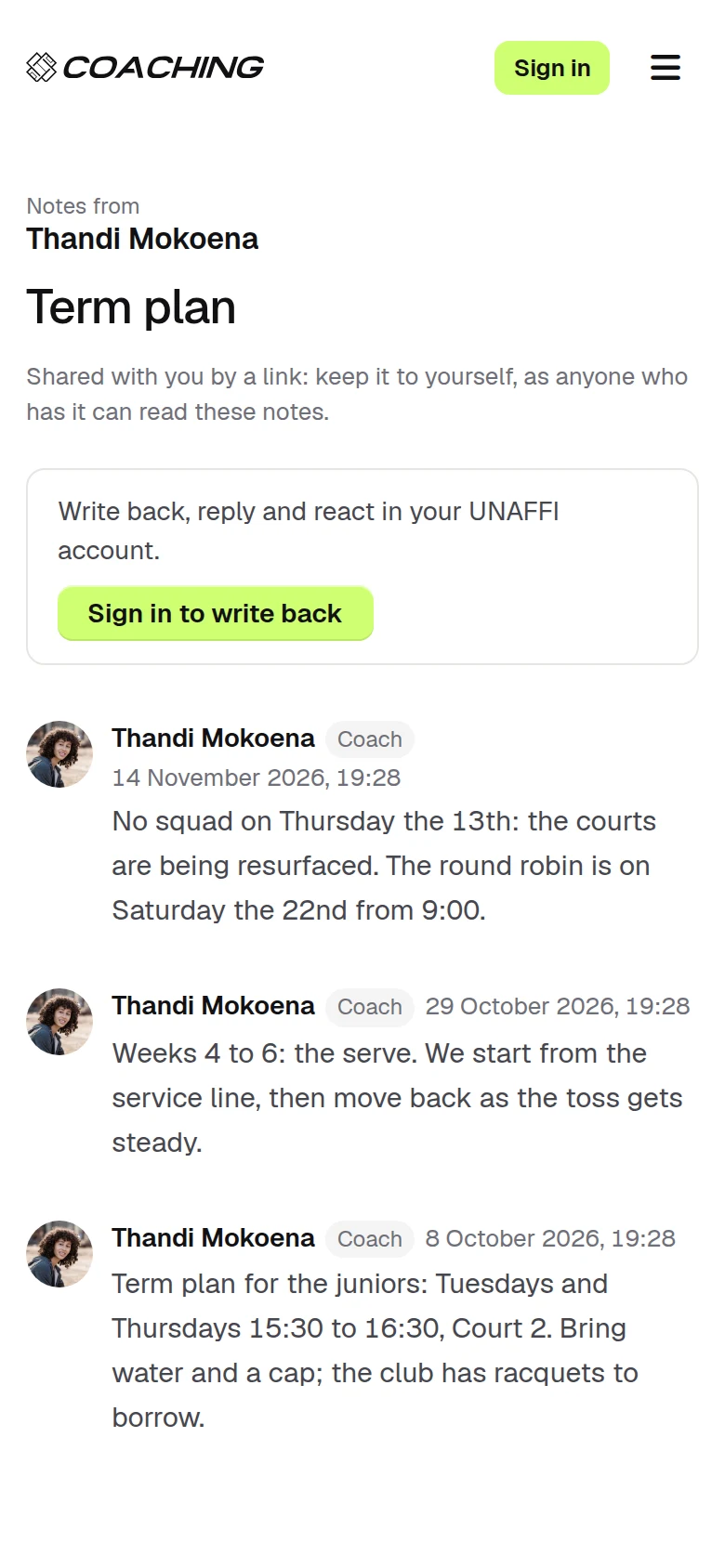
- Accounts + link: the same, and a link anyone can read it by, without an account. Send the link on WhatsApp to each of them, by email from UNAFFI, or copy it.
For a child, it goes to their parents or guardians. In a team, its owners and admins, or whoever made it, share a team folder. If the link gets to someone it shouldn't, press Make a new link: the old one stops working. Or pick Not shared.
5. Replies and reactions
Anyone who reads a folder can Reply under an entry and react with 👍 ❤️ 🔥 👏 💪. Clients and parents write entries of their own too, shown as theirs ("Parent of Ava"). In a squad's folder, every family it's shared with sees what the others write, like a group chat. You get a push when they write; they get one when you do. You can delete anything a client or parent writes in your folders. Someone reading by the link only reads: Open in my account there links their account, when it's signed in with the email address you have for them.
6. Forms in the journal
Need everyone's medical notes, or who's coming to the round robin? Open a folder's Attachments, then Forms, and add your forms under On this journal, or New form… to make one there. Choose for each how often it's filled in (once per client, once in total, or any number of times), who fills it in (clients and parents, anyone on the journal, or coaches only) and who sees the answers (you and whoever sent them, or everyone on the journal).
For a form every journal should have, owners and admins press All journals beside it under Clients › Forms: it's added to every team folder, and to every new one. Private folders are left out. Folders that have it already keep their own settings.
Whoever may fill one in finds it in the 📎 menu when they write, like a photo or a document; a parent with two children in the squad picks which child. Sent, the answers are an entry in the folder, which they can Edit, and they're on the client's Forms too. Attachments has the folder's photos and videos, its documents and voice notes, and for you its forms: each one's answers summed up in charts, and every answer with who sent it and when.
7. On the client's page
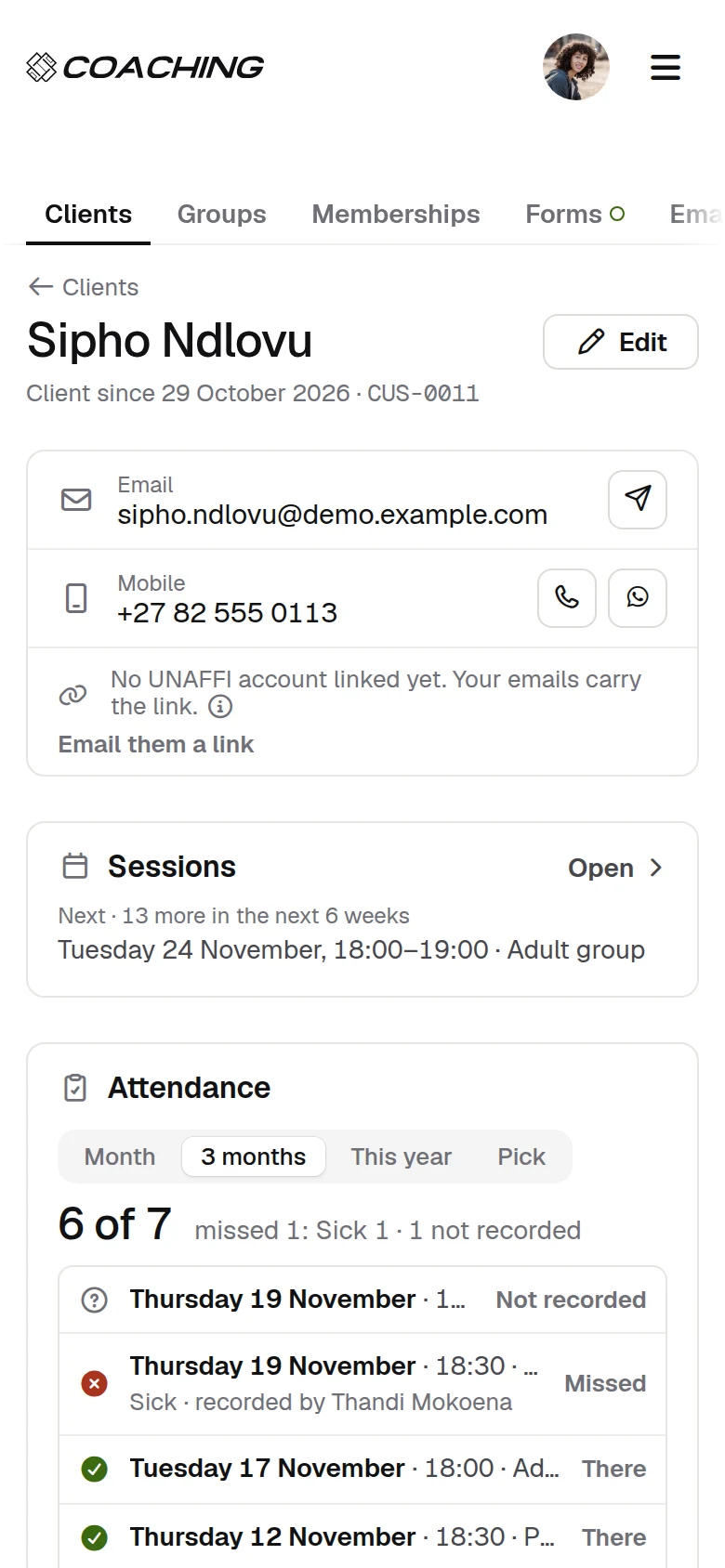
A client's Journal shows every folder about them, their own and their groups', with the one you're in open. Write there, or press New folder to make one about them. Their first folder is General, there to write in from the start. Their page shows your latest entry, so a glance before a session reminds you where you left off.
8. Change your mind
Press the pencil on one of your entries to change its words or what's attached, and it's marked as edited. The bin deletes it, after asking, as it can't be undone, and takes an entry's replies with it. Only whoever wrote an entry or reply can change it. Entries are newest first, 20 at a time, with older ones a press away.
The journal sits beside your client list, their sessions and invoices, and it's free.
Questions
Can my client see what I write?
Only what you share with them. Your journal is yours (in a team, each folder is the team's or yours alone) until you share a folder: then its clients and parents read it in their UNAFFI account, under Journal, once it's linked to them. Share it by a link too and anyone with the link can read it, without an account. Make a new link or stop sharing whenever you like.
Can parents read the notes about their child?
Yes, when you share a folder. For a child, it goes to their parents or guardians, who read it in their UNAFFI account once it's linked (Email them sends each their own link), or by its link if you share one: by WhatsApp from you, or by email from UNAFFI.
Can clients and parents write back?
Yes, in their UNAFFI account: they write entries, reply under yours and react, and their entries say who they are (Parent of Ava). In a squad's folder, every family it's shared with sees what the others write. You get a push when they write, and can delete anything they write in your folders. Someone reading by the link only reads, until they link their account.
Can I send a form in the journal?
Yes. Add your forms to a folder (or make one there), and choose how often each is filled in, who fills it in and who sees the answers. They fill it in from the 📎 menu, the answers are an entry in the folder and on the client's Forms, and the folder's Attachments sum each form's answers up in charts.
How do folders work?
Make a folder for anything: one client's progress, a squad's term plan, your own drills. A folder can be about one client, several, a group (whoever's in it now) or nobody. A client's first folder is General. Folders can be renamed but not deleted, and an entry stays in the folder it was written in.
Can I add photos, videos or voice notes to an entry?
Yes: photos, videos up to 3 minutes, voice notes up to 10 minutes and documents (PDF, Word, Excel and the like). Take or record them on the spot, or choose files. They upload as you add them and are made smaller for the page; photos and videos open full screen when you tap them.
Is the journal free?
Yes. The journal is on every plan, Free too, with as many folders, entries and photos as you like, and sharing. Plans differ only in their room: coaches and admins, active clients, and invoices and applications a month.