How to plan your coaching sessions, squads and courts in one calendar
Plan one-off and repeating coaching sessions, take registers and remind clients before each one. Clash warnings, a digest each evening, and calendar sync. Free.
· Updated
Junior squads on Mondays and Wednesdays, private lessons before work, an adult group on Tuesday evenings: under Schedule, all of it is in one calendar, with who's coming, which court and where. Plan a session once and let it repeat, see clashes before they happen, and get tomorrow's sessions the evening before.
1. Your day and your week
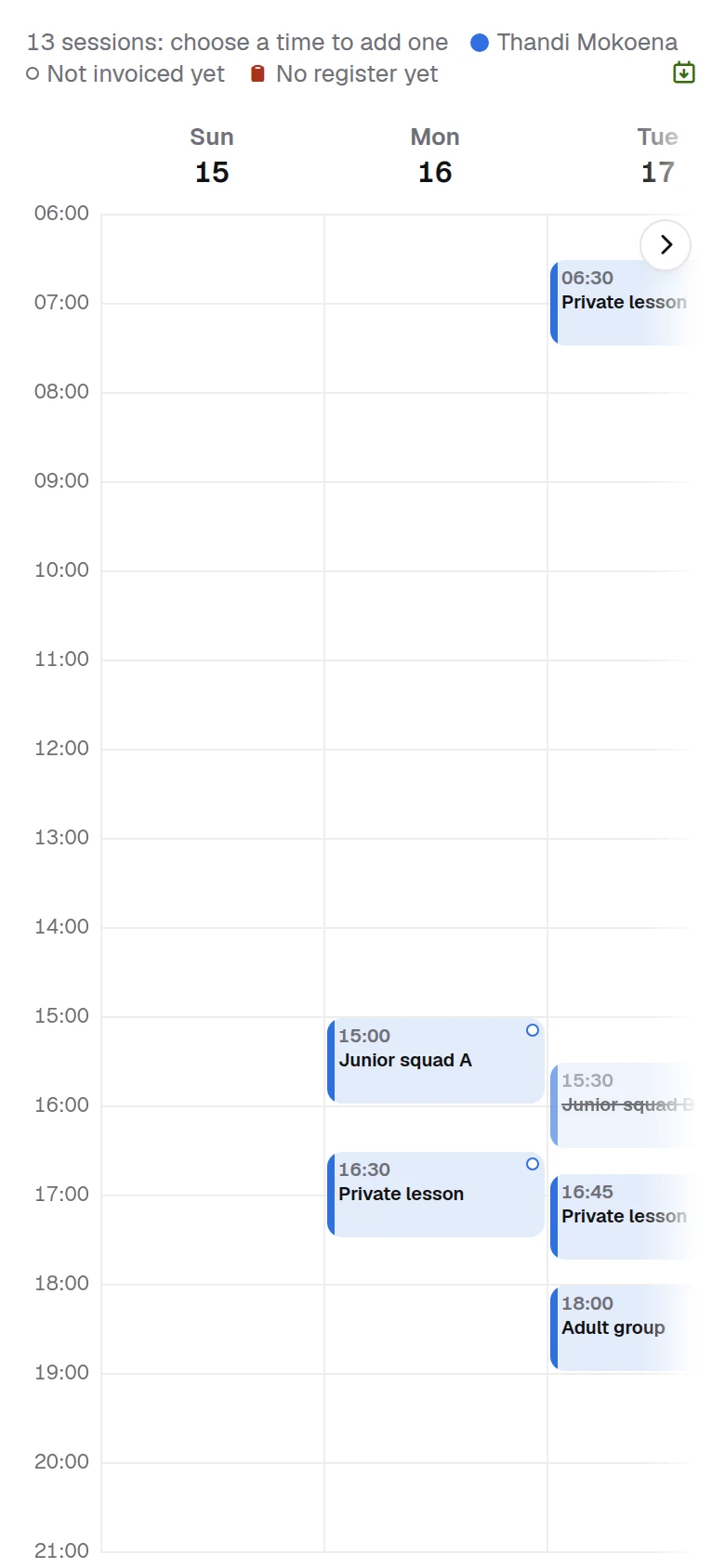
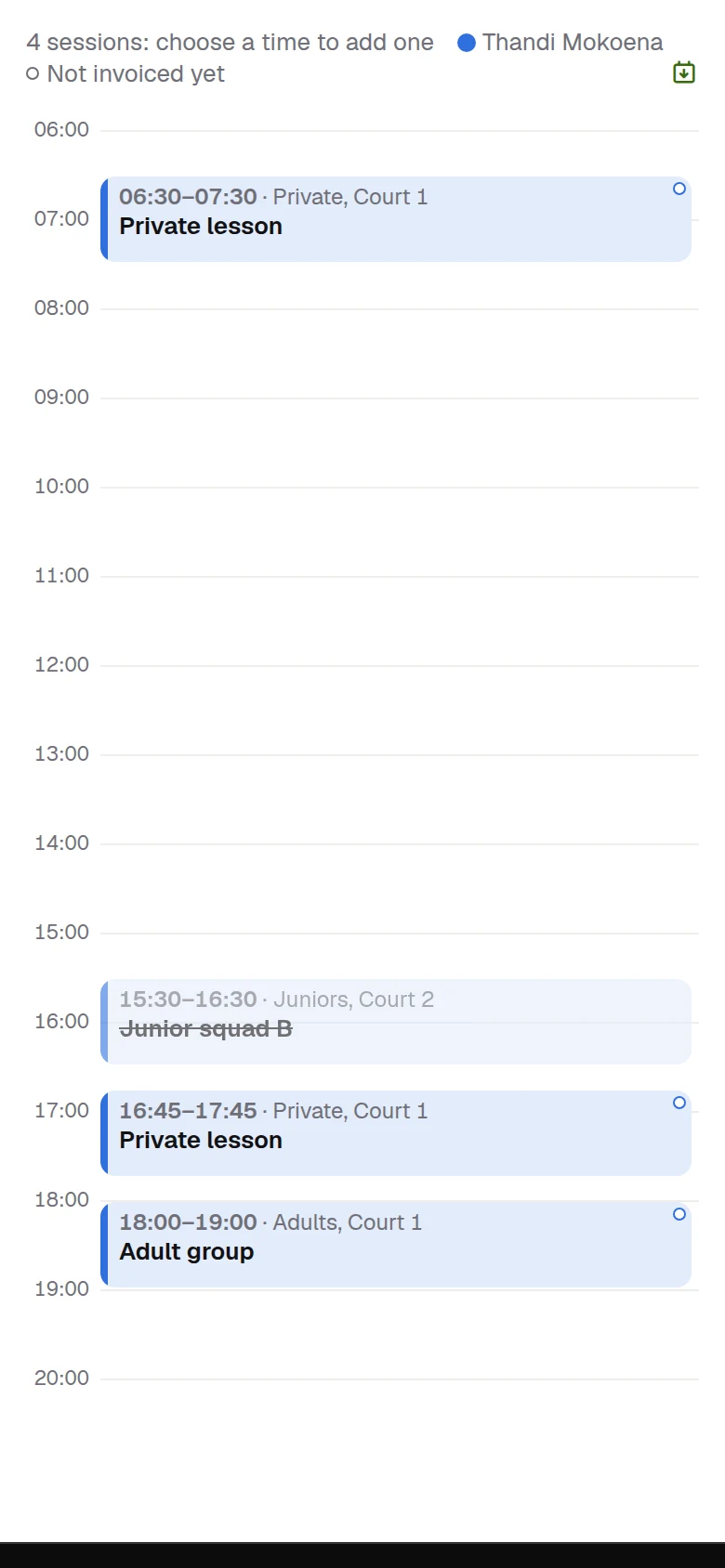
Switch between Day and Week; UNAFFI remembers which you like. The hours run down the side, each session a block in its coach's colour, with a key above it. A red line shows the time now. Sessions at the same time sit side by side, and a cancelled one stays, struck through, so you know it was there. Tap an empty time to add a session then. Two small marks, explained in the key: a hollow dot on a session that isn't invoiced yet, and a red clipboard on one that's ended without its register.
Filter by tag, like one court or your juniors, or by client or group, to see only theirs. Everything updates as it changes, on every device you're signed in on.
2. Add a session
Press Add session, or tap a time on the calendar, and fill in:
- Day, start and end. Type a time ("930", "9:30") or pick it in 15-minute steps. A session can run past midnight, up to 24 hours.
- Coach. On your own, it's you to start with: press your name to leave it off. In a team, choose which of its coaches.
- Clients, from your client list: one at a time, or a group's all at once. Someone new? Type their name, choose it, and say if they're Under 18: they're one of your clients there and then.
- Tags, like "Court 2" or "Juniors", to filter by and to warn you about clashes.
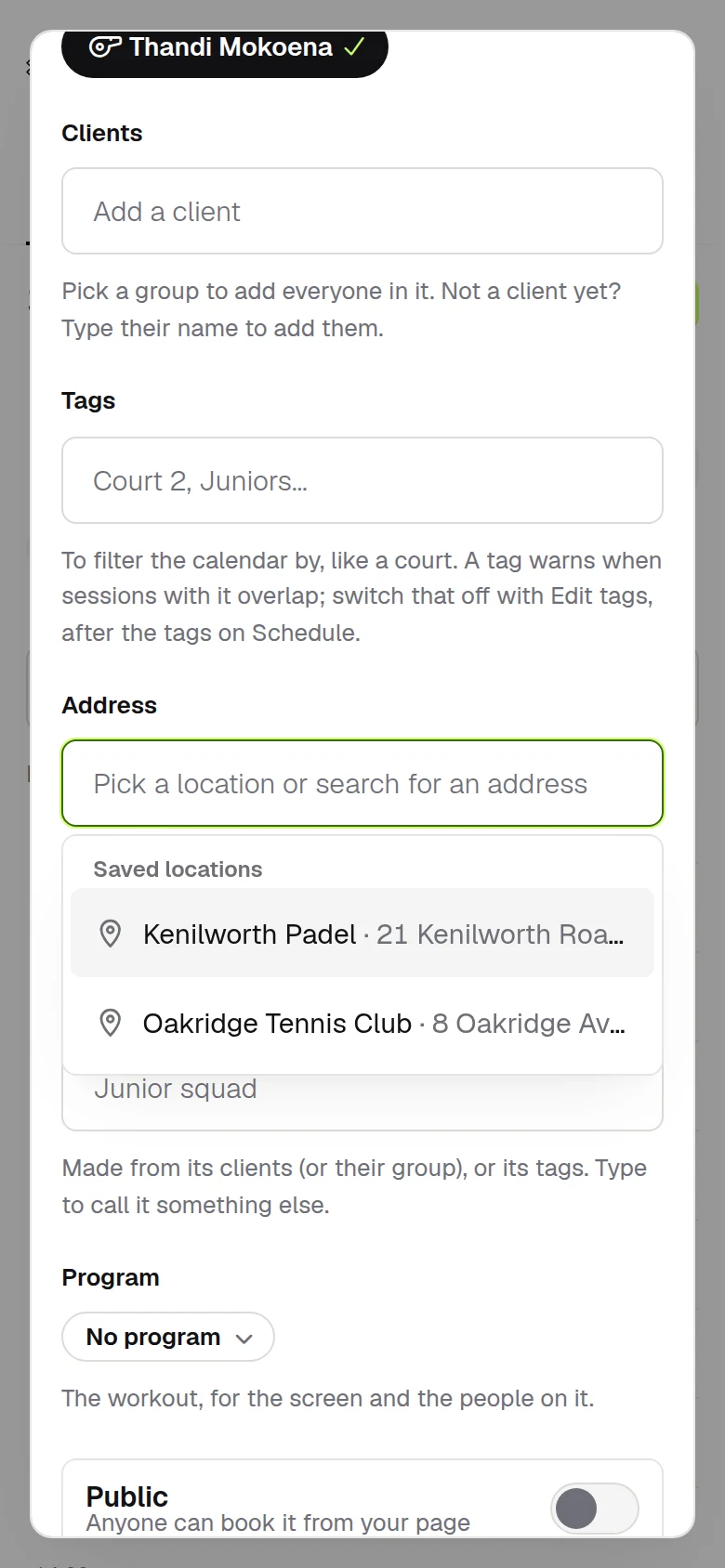
- Address: one of your saved locations, or a new address searched as you type. The session gets directions in Google Maps.
- Title, made for you from its clients ("Kari and Abigail", or their group's name) or its tags, unless you call it something else; and notes for anything to remember.
- Reminder message, if you like (Add a reminder message): what to bring this time, a different gate, with photos or documents. It goes in this session's reminder.
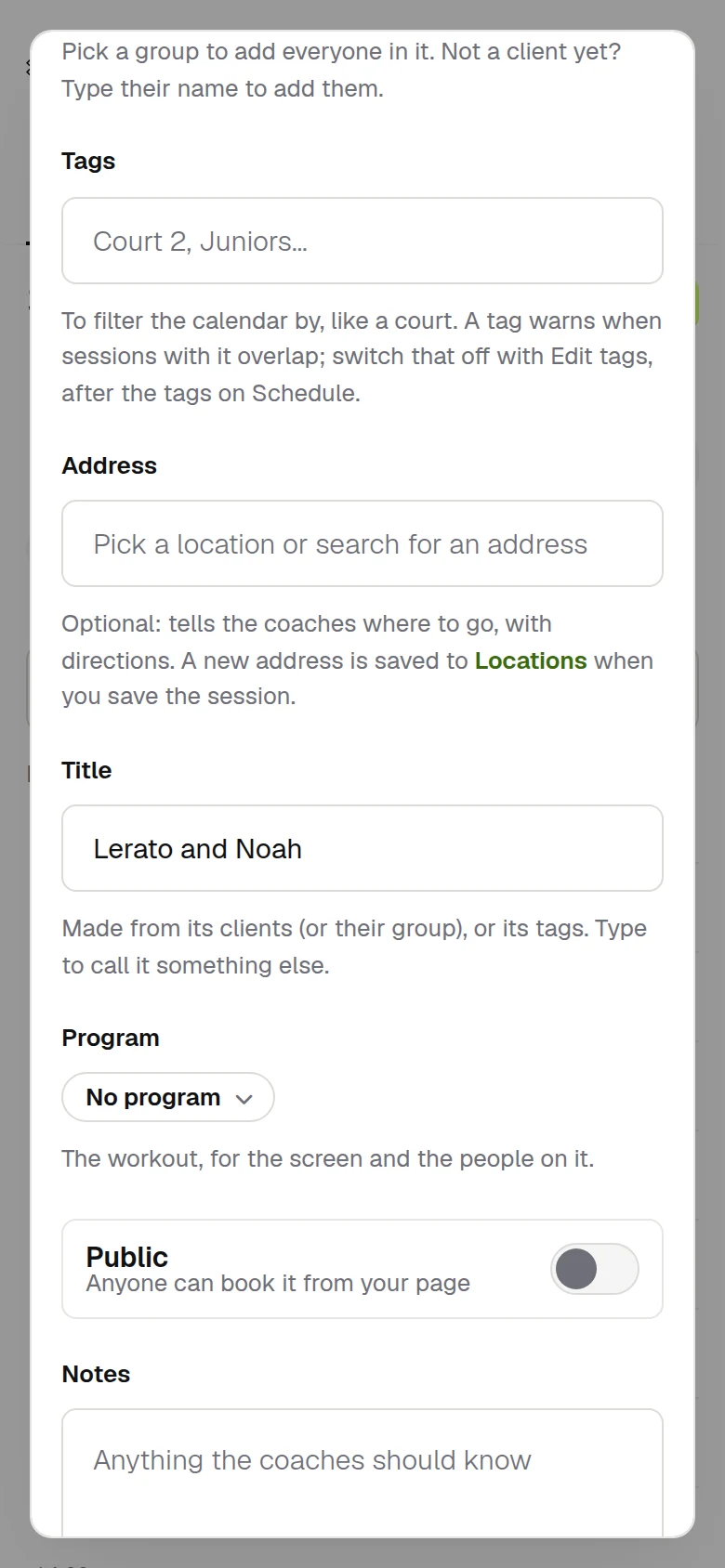
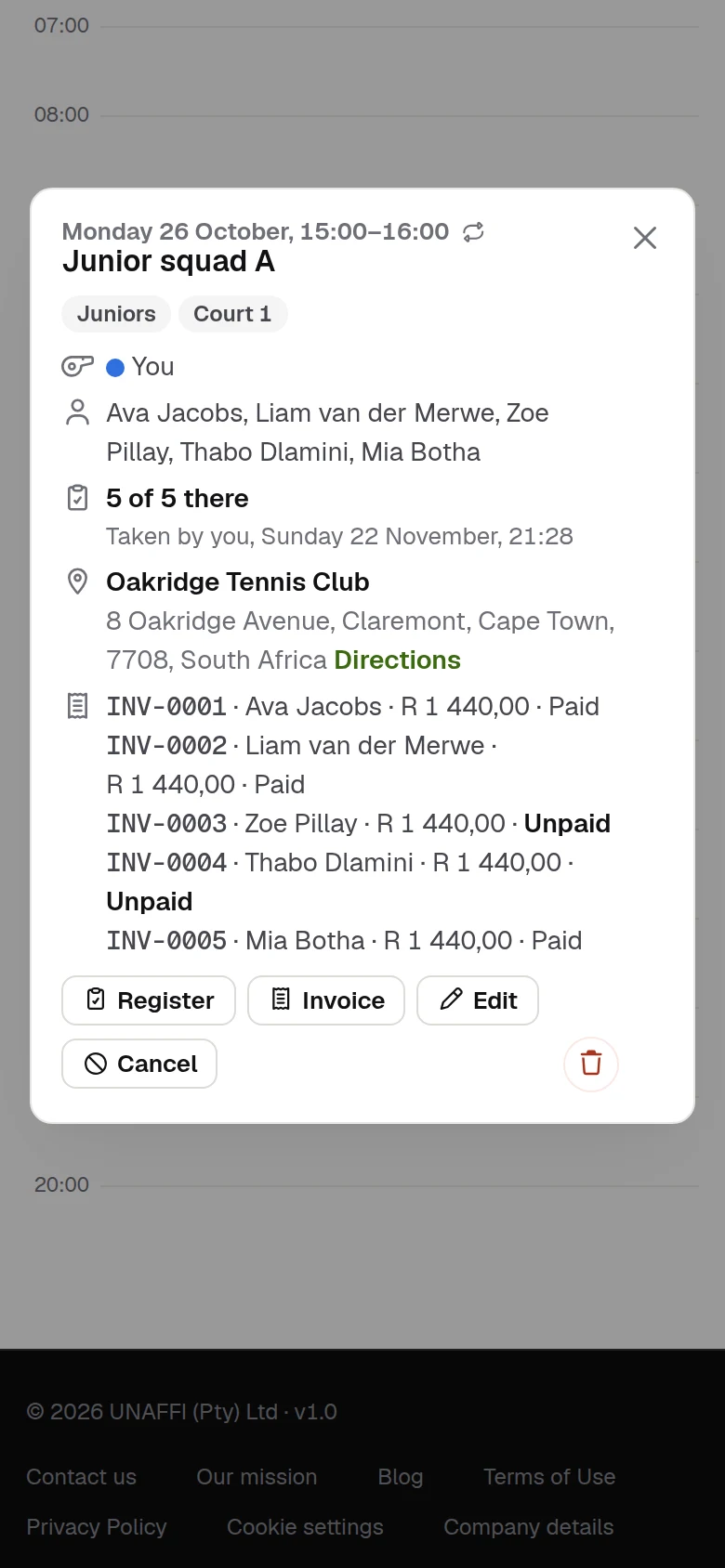
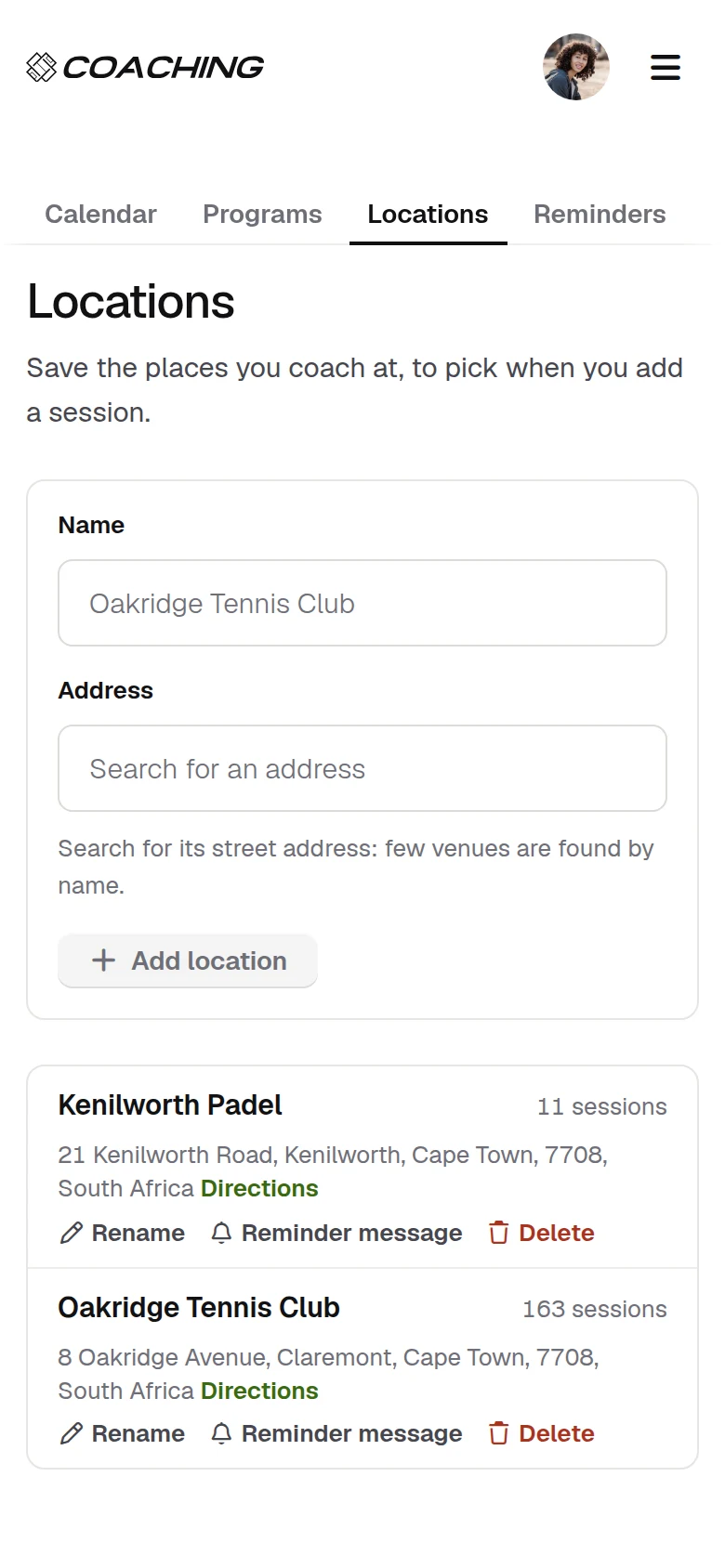
Most coaches have a club or two they're always at, so you don't type the address every time. The places you coach at are your locations, and the address field lists them first: pick one. Search for a new address and it's saved to your locations when you save the session, under its address. On Locations (the pin above the calendar, on a phone) rename it to what you call the place, and its sessions show the new name. Owners and admins can also give a location a Reminder message (parking, the gate code, a map of the venue) for every session there. In a team, its owners and admins rename and delete them.
3. Sessions that repeat
Set a session to repeat daily, weekly or monthly, every so many days, weeks or months. Pick the weekdays (Monday and Wednesday for a squad) or, monthly, the same date each month. It can go on without end, until a date, or for a number of sessions.
Changing a repeating session? Choose Only this session (one rained out, or moved) or This and following sessions (a new time from next term). The ones after it change in place, so a session you changed on its own keeps that change. Move them to another day and they're made again, but any on an invoice or with a register stay as they were.
4. Tags and clash warnings
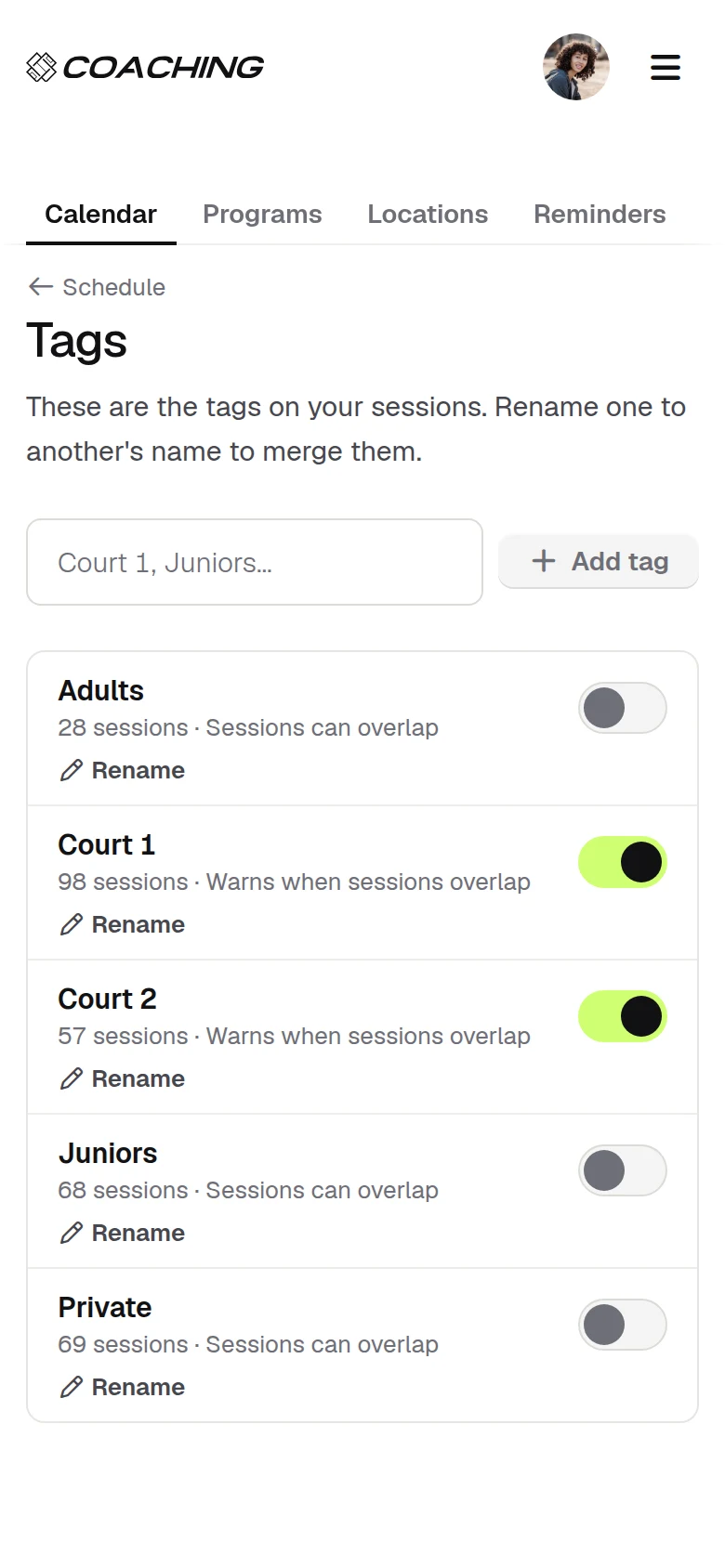
While you fill in a session, UNAFFI lists any it clashes with: the same coach at the same time, or a tag that's set to warn, like a court. New tags warn to start with. Switch that off on the Tags page (Edit tags, after the tags on Schedule) for one that many sessions share at once, like "Juniors". It's a warning, never a block: you can still save it.
On the Tags page you can also rename a tag, merge two by giving one the other's name, and delete one once no session has it.
5. Cancel or delete
Cancel a session and it stays on the calendar, struck through, and is left out of your digest, clash warnings, registers and invoicing, and clients who've had their reminder are told. Bring back undoes it. Delete takes it off for good, after asking. On a repeat that's still to come, delete just that session, or it and every one after it. A team's coaches can't delete one that's been invoiced: they cancel it.
6. Take the register
From the day of a session, open it and press Register. Its coaches come first, then its clients, everyone ticked to start with. Untick whoever didn't come and pick why: Sick, Injured, Away, No show or Other, with a note. A coach stood in? Add a coach who stood in.
Someone came who wasn't booked? Under Someone else came?, add a client, a group, or someone new by name: they're put on that session only. Then Save register.
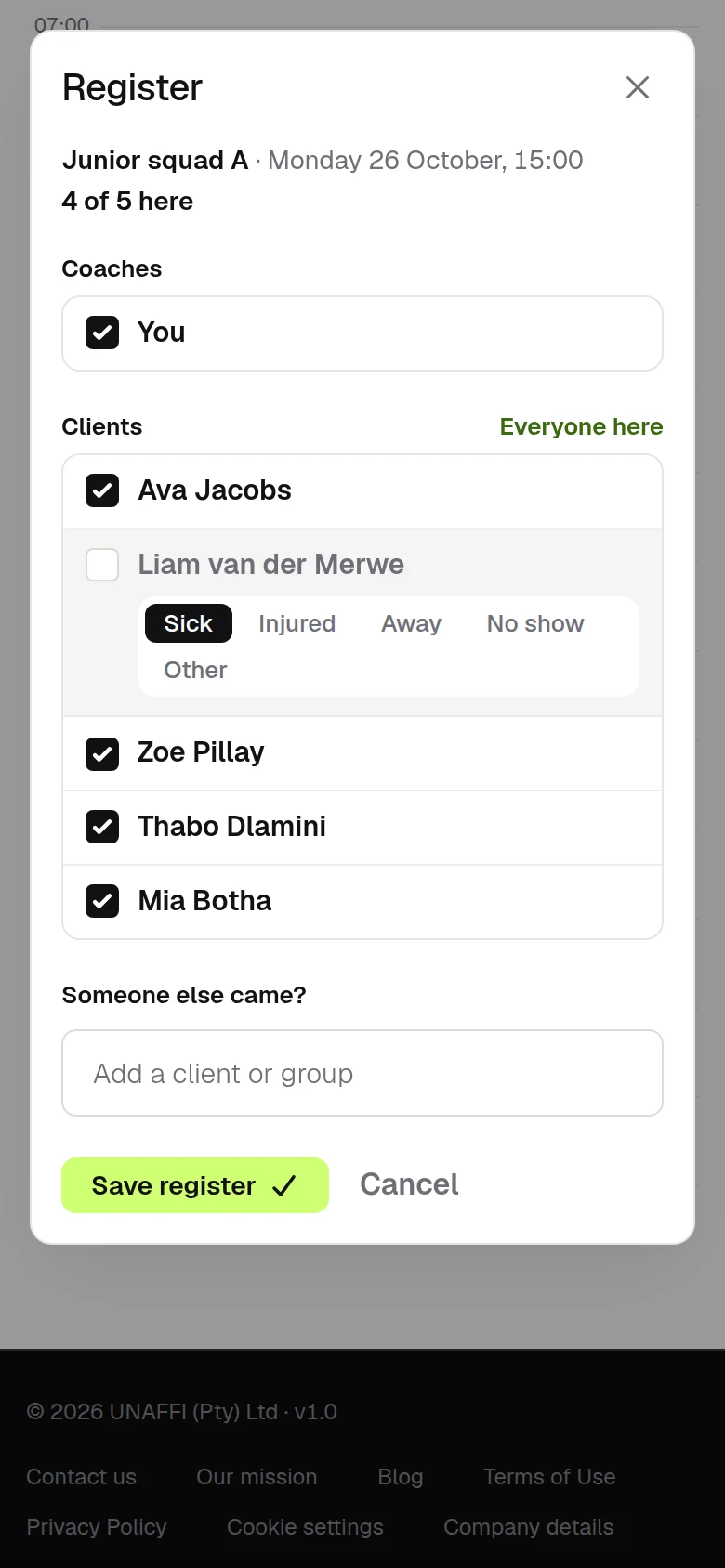
The session then shows how many were there, who missed it and why, and who took the register. One that's ended without a register has a small red clipboard until it's taken. Each client's page has their Attendance, your Clients overview shows attendance month by month, and Clients › Export › Attendance gives you a term's register in Excel or CSV.
7. Remind your clients
Owners and admins open Reminders on Schedule (the bell, on a phone) and switch on Remind clients. Choose when: Hours before (2 hours, 6 hours, a day, 2 days, or your own) or At a set time, like 08:00 on the day or 18:00 the day before. Add a Message for every reminder (what to bring, where to park), with photos or documents. A location and a session can add their own.
Each client is reminded once by email; for under-18s, their parents or guardians are. Anyone who's linked their UNAFFI account gets a notification instead. If a session's cancelled, moved, gets a new title or place, or they're taken off it after the reminder, they're told. Once linked, they see their upcoming sessions in their account, and can sync them to their own calendar. Never anyone else on a session, or your notes and tags.
8. Tomorrow's sessions, the evening before
Every evening at 20:00, if you're coaching the next day, you get tomorrow's sessions by email, and as a notification if you've turned them on: each one's time, title, tags, clients, address with directions, and notes. If someone else changes today's sessions, or tomorrow's after that email (in a team, say), you're told what changed.
9. In Google Calendar or Apple Calendar
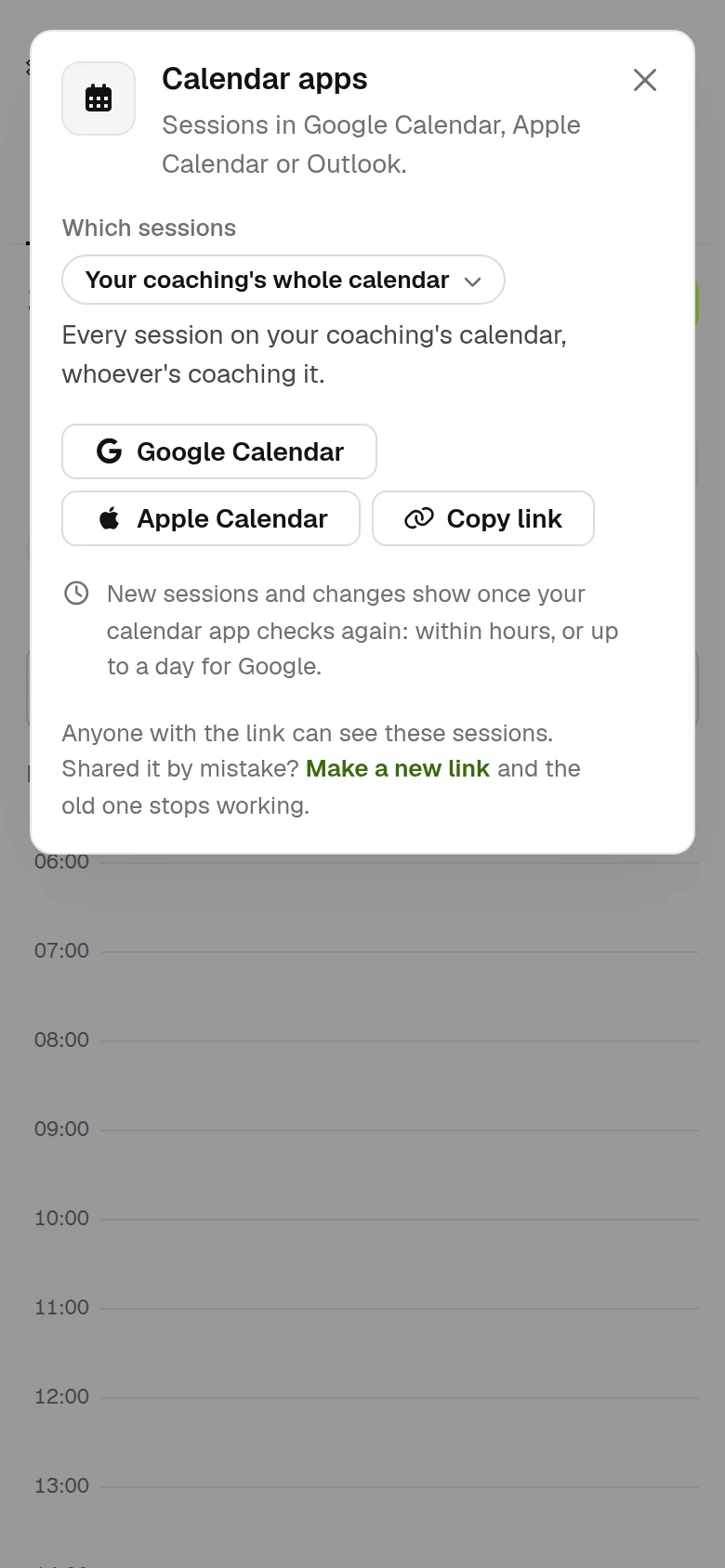
Want your sessions next to everything else? On Schedule, tap Sync to your calendar app (the calendar icon above the calendar, on a phone). Choose which sessions (everything you coach, or the whole calendar of a team you own or run), press Get the link, then Google Calendar, Apple Calendar or Copy link (for Outlook or anything else). Google Calendar's phone app can't add a calendar from a link, so do it on a computer once: it then shows on your phone too. On an iPhone, Apple Calendar adds it straight away.
New sessions and changes show once your calendar app checks again: within hours, or up to a day for Google. So a change on the day reaches you by push or email first. Anyone with the link can see your sessions; shared it by mistake? Make a new one and the old one stops working.
10. Invoice straight from it
Open a session and press Invoice to bill its clients for it, or for a repeat's sessions over a month. Sessions that haven't been invoiced yet have a hollow dot in their corner (Not invoiced yet in the key), and Finance › Uninvoiced sessions lists every client with sessions still to bill. See how invoicing works.
11. Sessions people book themselves
Switch on Public when you edit a session, with its spots, price and when it books, and anyone can book and pay for it from your page; they become your clients. See online bookings.
12. A workout on the TV
Give a session a Program (Schedule › Programs) and show it on a screen or the TV at your venue, with its AMRAP, EMOM or Tabata clock, run from your phone. See training programs on a TV.
Coaching with a team?
In a team, everyone sees the whole calendar, each coach in their own colour, and coaches can show just their own sessions. Owners and admins plan any session, coaches plan the ones they coach, and each coach gets their own digest of the next day. Owners and admins take any session's register and set your clients' reminders; coaches take the registers of the sessions they coach. Invoicing stays with the owners and admins.
Questions
Can I see my sessions in Google Calendar or Apple Calendar?
Yes. On Schedule, tap Sync to your calendar app, choose which sessions, get your link and add it to Google Calendar (on a computer: it then shows on your phone too), Apple Calendar or Outlook. Calendar apps check for changes within hours, or up to a day for Google, so changes on the day reach you by push or email first.
Do I have to type the address for every session?
No. The places you coach at are saved as locations, and the address field lists them first: pick one. A new address you use on a session is saved too, under its address; rename it to what you call the place (Oakridge Tennis Club, say) on Schedule's Locations page. In a team, its owners and admins rename them.
Does it warn me about double bookings?
Yes. While you fill in a session, UNAFFI lists any it clashes with: the same coach at the same time, or a tag like a court that's set to warn. It's a warning, not a block, so you can still save it.
Can I plan a squad that meets every week?
Yes. A session can repeat daily, weekly or monthly, every so many days, weeks or months, on the weekdays you pick, without end, until a date, or for a number of sessions. Change one session, or that one and every one after it.
Can my clients see my schedule?
Not your schedule: that's yours (and your team's). But each client, or a child's parents, can see their own sessions. If you turn on reminders, they're reminded before each one. Once they've linked their UNAFFI account, by the personal link in your emails, their upcoming sessions are in their account, and they can sync them to their own calendar. They never see anyone else on a session, or your notes and tags.
Can I take a register?
Yes. From the day of a session, open it and press Register. Everyone starts ticked: untick whoever didn't come and pick why (Sick, Injured, Away, No show or Other, with a note). Add anyone who came unbooked, and a coach who stood in. Each client's page shows their attendance, and Clients › Export › Attendance gives you the register in Excel or CSV.
Can UNAFFI remind my clients about their sessions?
Yes. Owners and admins switch on Schedule › Reminders and choose when: some hours before, or at a set time, like 08:00 on the day. Clients, or a child's parents, get it by email, or as a notification once they've linked their UNAFFI account. If a session's cancelled or moved after that, they're told.
Is the schedule free?
Yes. Your schedule is on every plan, Free too, with as many sessions as you like. Plans differ only in their room: coaches and admins, active clients, and invoices and applications a month.