How to invoice your coaching clients and get paid online
Invoice coaching clients by a link they pay through Paystack or by EFT, into your bank, with reminders and statements. UNAFFI takes no cut, and EFT has no fee.
· Updated
Coaching is the part you love; chasing payments isn't. On UNAFFI you send a client an invoice as a link. They open it, see what it's for and pay by card through Paystack, without signing up for anything, or by EFT, and the money goes into your bank account. UNAFFI takes no cut: only Paystack's fee comes off each online payment.
1. Set up where you get paid
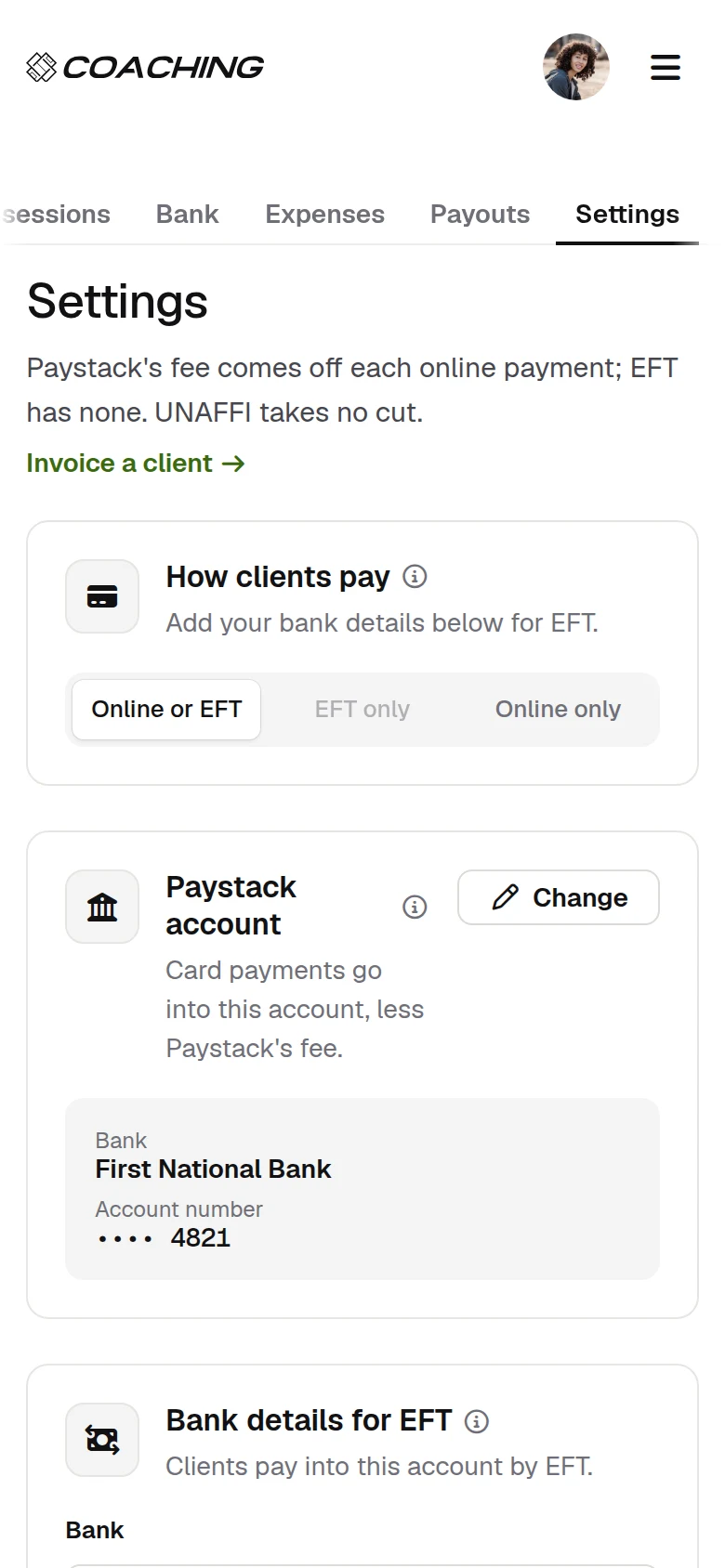
Under Finance › Settings, choose your bank and type in your account number. It goes to Paystack, our payments provider, and is only used to pay you: your clients and other coaches never see it.
On the same page you can add your details on invoices: a registered business name, an address, a registration number, and an email address or phone number for questions about invoices. All of it is optional. Add a VAT number and your invoices become tax invoices, with the 15% VAT included in each amount.
2. Invoice a client
Under Finance › Invoices, press New invoice. Choose the client, or several or a group (each gets an invoice of their own); not a client yet? Type their name to add them there and then. Then choose what it's for: their sessions on some days, or an amount for anything else, like a holiday camp, with what it's for: your client sees that on the invoice and when they pay. Each invoice gets the next number in your own sequence, INV-0001, INV-0002 and on, never skipped or used twice. Want your own letters, like UNF-0001? Set them in Finance › Settings.
Each invoice is emailed to your client as it's made, with its PDF. Choose Don't send to share it yourself instead.
3. Send it on WhatsApp or by email
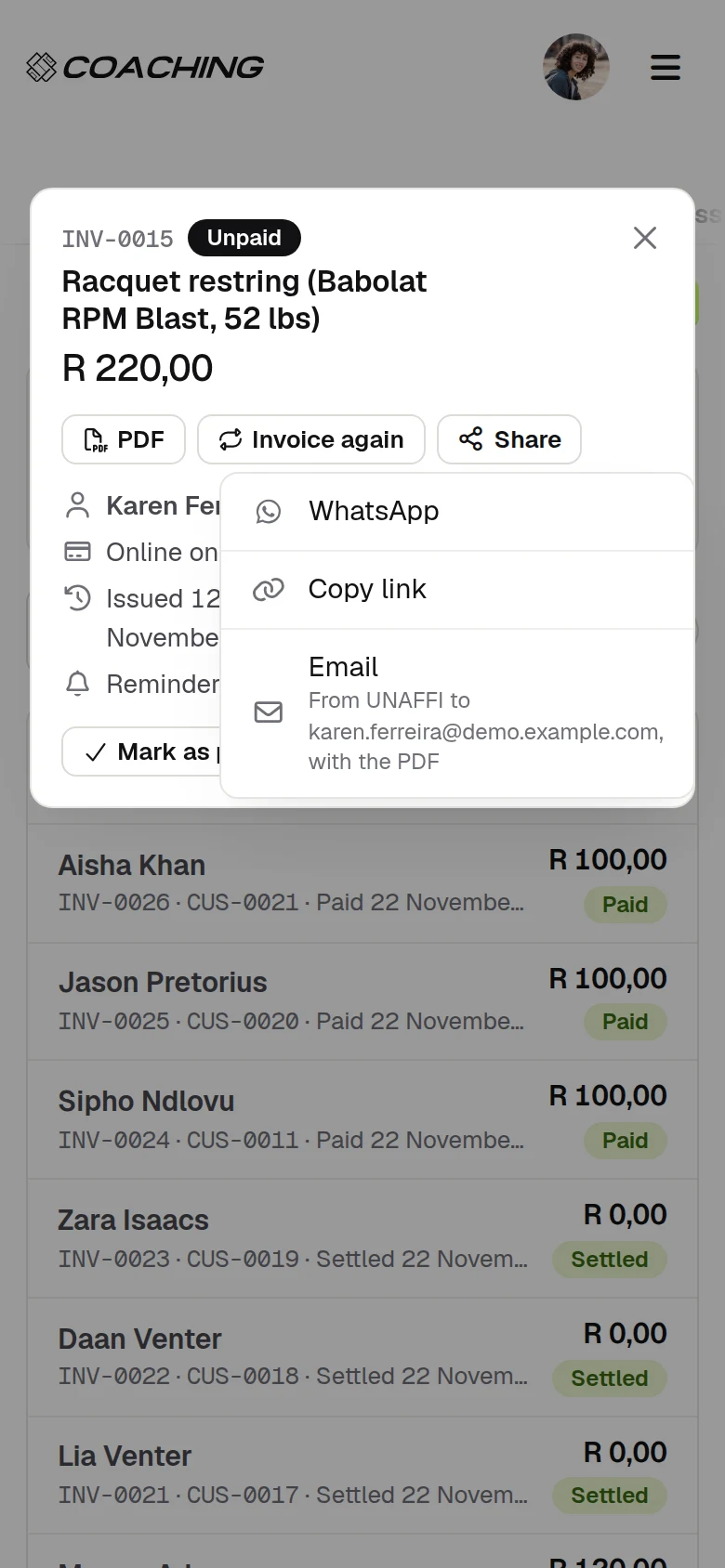
Press Share on the invoice and choose how it goes:
- WhatsApp, from your own WhatsApp, with a message ready to edit: "Hi Karen, here's my invoice INV-0042 for R 450,00 (4 tennis lessons in October). You can see it and pay it here: …"
- Email, sent by UNAFFI, with the invoice attached as a PDF. For someone you added from their request, it goes to their UNAFFI account when you don't have their email address. You don't see that address, unless they share their details with you.
- Copy link, to send it any other way.
The link is short and easy to send. Anyone with the link can pay it, so send it only to your client.
4. What your client sees
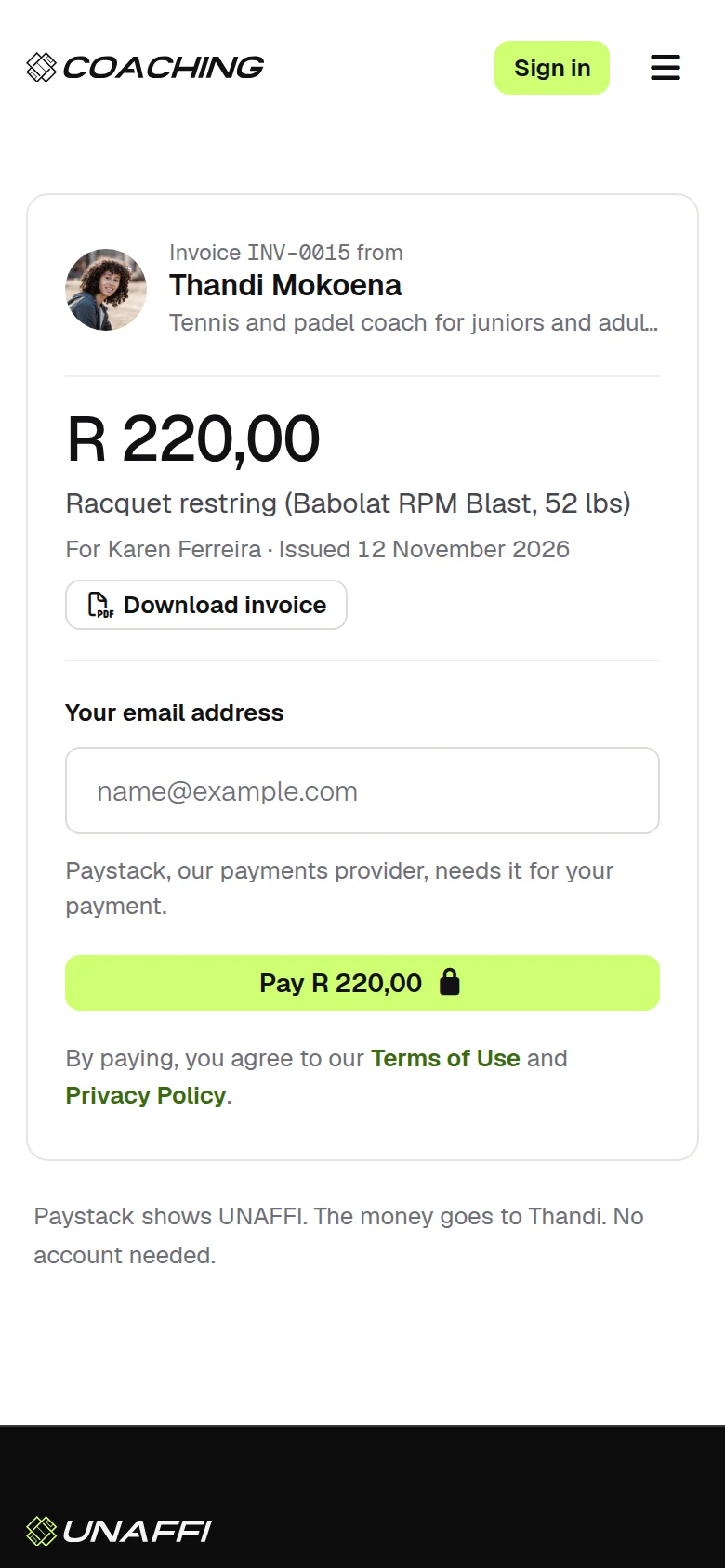
The link opens your invoice with your name, photo and tagline, the amount and what it's for. Your client can download it as a PDF. To pay, they give their email address (Paystack needs it for the payment) and press Pay: Paystack's secure checkout opens over the page. There's no account to make and nothing to download.
Once they've paid, the same link says so, and you get a notification: "Payment received 🎉".
Each email also carries their personal link to their UNAFFI account. Once they've linked it, every invoice from you is in their account, under Invoices: they can tick several and pay them in one go, even from different coaches, and Paystack pays each coach their share.
5. Invoice a whole squad from your schedule
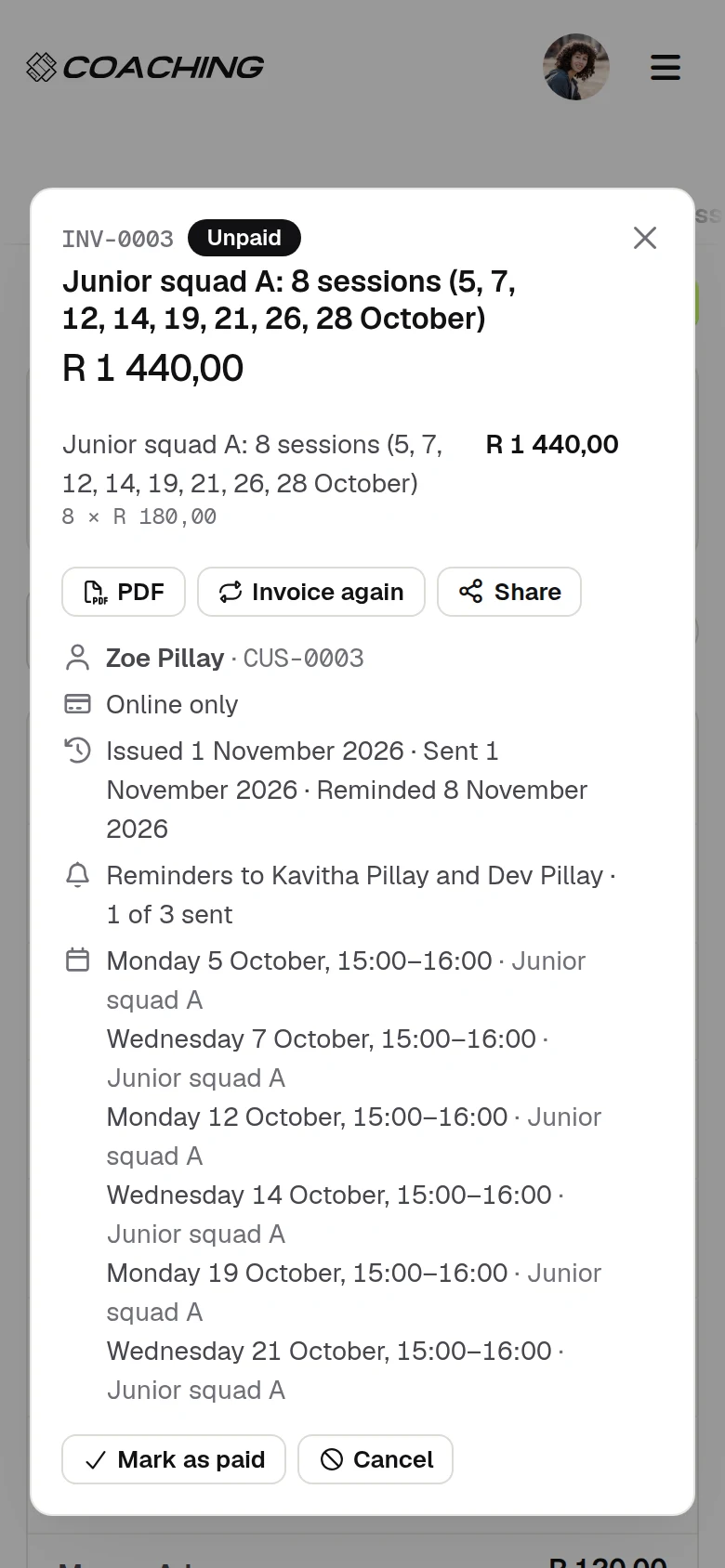
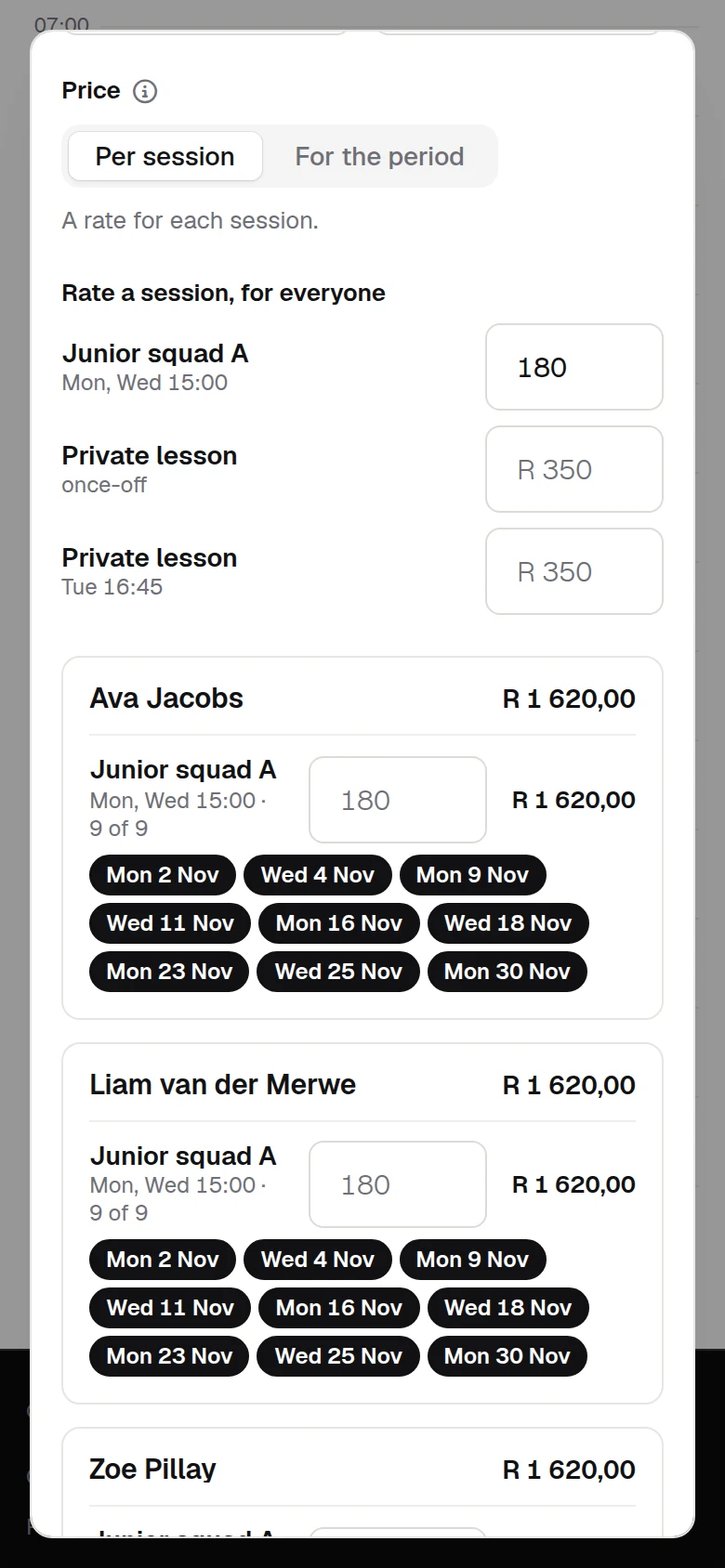
If your sessions are on your schedule, you don't have to add up who came when. Choose Sessions and the days, like last month, and each client's sessions show, grouped by session, ticked when they're not invoiced yet. Price them per session, a rate for each (the same for everyone, or a client's own), or for the period, one amount like R3 000 for November. Your prices are listed in each rate and amount box as you click into it: pick one, or type your own. UNAFFI makes an invoice for each client with a line for each session, the dates written in: "Junior squad A: 8 sessions (5, 7, 12, 14, 19, 21, 26, 28 October)". Email them all at once, or share each.
It's the same from a session on your schedule (press Invoice) and from Finance › Uninvoiced sessions, which lists every client with sessions not invoiced yet: tick several to invoice them together. A session already invoiced shows its invoice and isn't ticked, so you can't bill it twice by accident; tick it to invoice it again. Coaching someone for free? Give them R0: their invoice says it's settled, with nothing to pay.
6. Coaching children? Invoices go to their parents
Most of the people you coach may be under 18. Add their parents or guardians to their client page, and invoices, statements and reminders go to them, each invoice billed to them as "Parents or guardians of" your player, so it's clear who it's for.
7. Reminders, so you don't have to chase
Switch on payment reminders under Finance › Settings and choose how often: every 3 days, every week, every 2 weeks or every month. Each unpaid invoice is then reminded up to 3 times, by email, or by SMS for someone without an email address (a client added from their request is emailed at their UNAFFI account). Reminders stop as soon as the invoice is paid or cancelled. Every invoice shows where its reminders are: "Reminders by email · 1 of 3 sent".
8. Keep track: invoices, statements and payouts
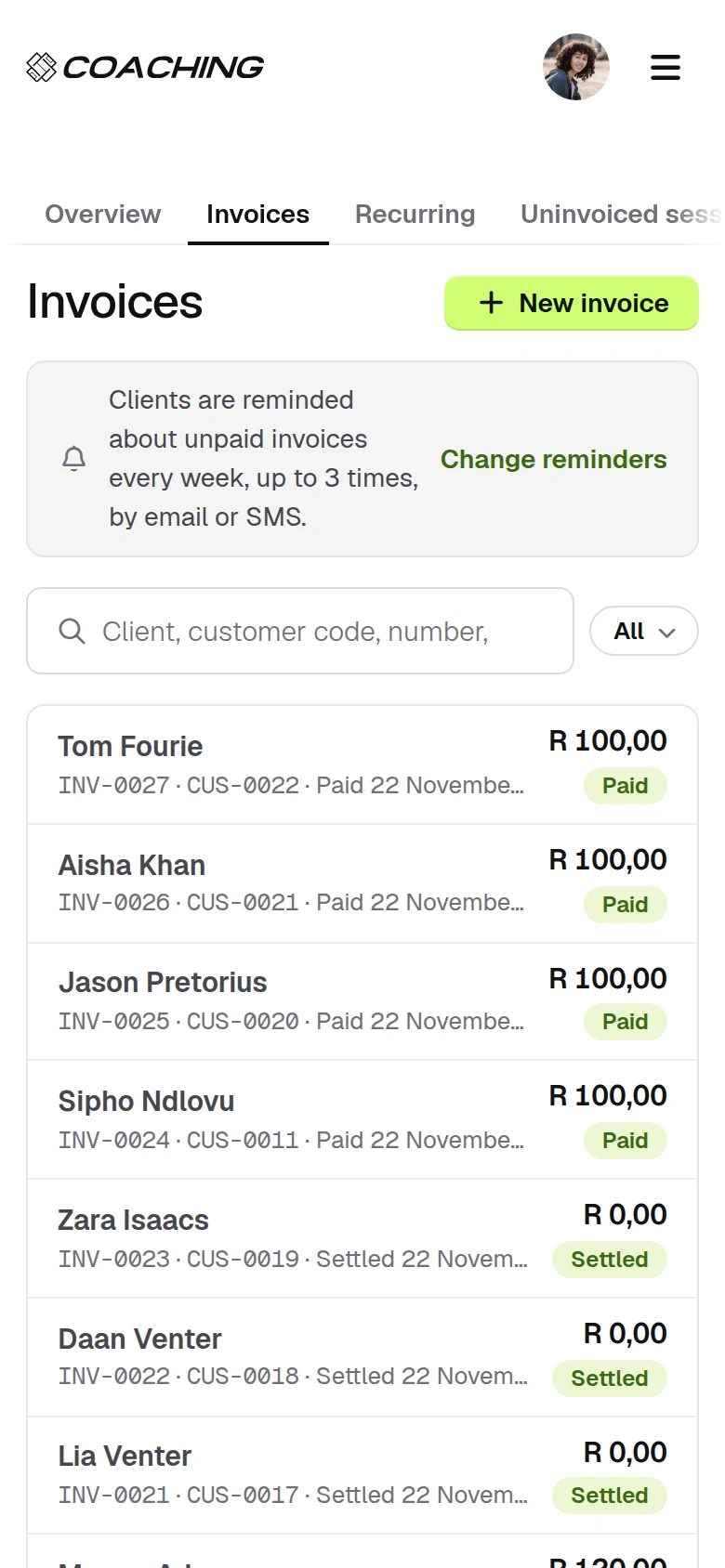
- Invoices lists everything you've invoiced, newest first: unpaid, paid or cancelled. Open one to see its history (issued, sent, reminded, paid) and the sessions it was for.
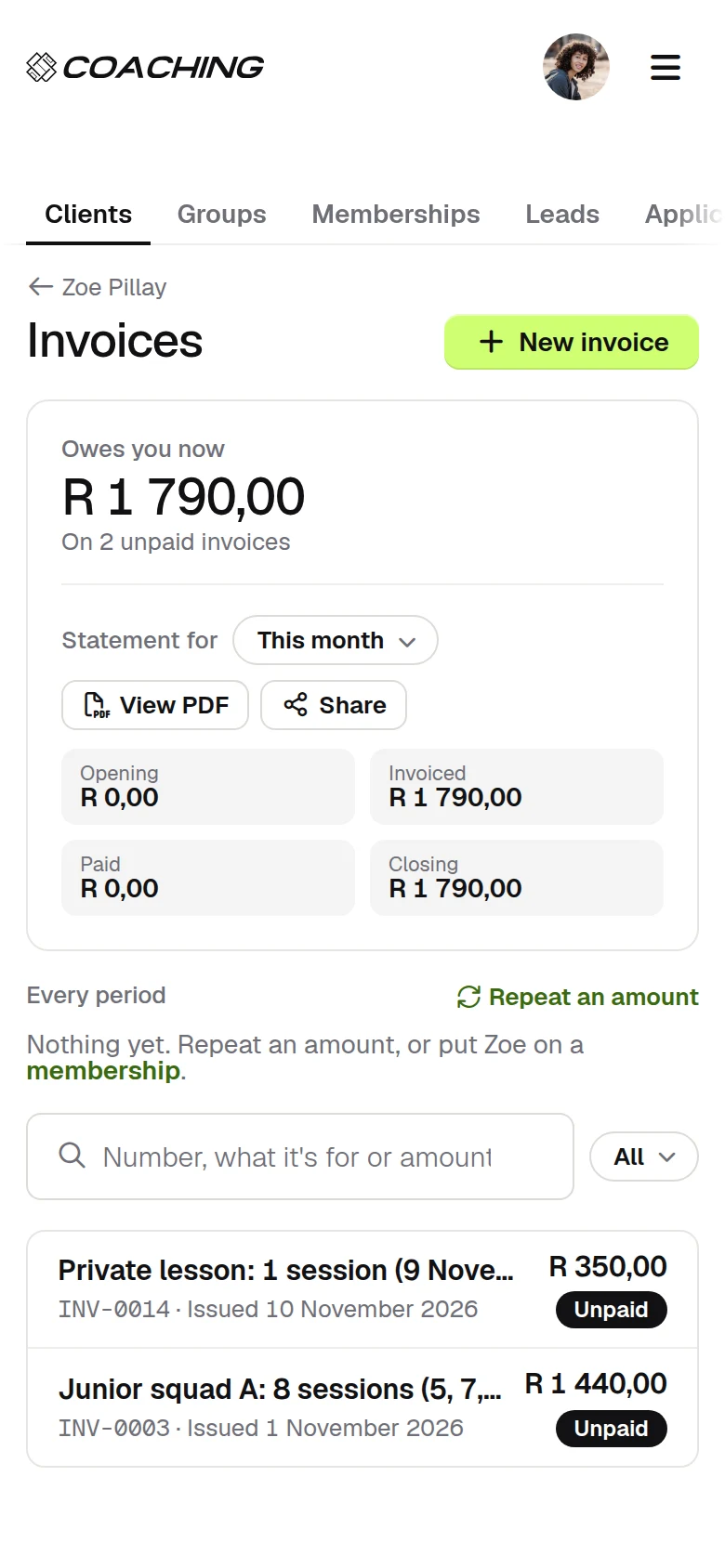
- Statements, on each client's Invoices page (the Invoices card on their page), show what they owe you now, for this month, last month, the last 3 months, this year or all time. Share one like an invoice: your client sees what's due and pays each invoice from it.
- Finance shows what you invoiced, were paid and spent, month by month, who owes you what, most owed first, and the money at Paystack on its way to you.
- Payouts shows each payment through Paystack, the fee that came off it, and whether it has reached your bank yet. Paystack pays out on its own schedule, usually the next working day.
9. Let clients pay by EFT, with no fee
Under Finance › Settings, add your bank details for EFT. Your invoices and statements then show them, with the client's customer code (like CUS-0042) as the reference. Every client has one, on their page and beside each invoice, so you can match each payment on your bank statement. Search for a code to find their invoices.
Choose how clients pay: online or EFT (they choose), EFT only, or online only. Change it for a client on their details, or for one invoice as you make it. An EFT has no Paystack fee, but you mark the invoice paid yourself once the money is in your account: until then it stays unpaid, and reminders keep going.
Many EFTs at once? Load your bank statement under Finance › Bank: a payment with a client's customer code ticks their unpaid invoices for you, oldest first, to check and mark paid. A payment can pay part of an invoice, and a client's several payments can be sorted to their invoices together. See how.
10. Paid in cash?
If a client pays you some other way, open the invoice and mark it as paid. Its link stops taking payment and its reminders stop. Marked one paid by mistake? Open it and mark it as unpaid. Made one by mistake? Cancel it and its link stops working.
Paid only part of it? Type the Amount paid as you mark it. The invoice shows Partly paid with what's still owed, and its link, reminders and statement ask only for the rest. Filter your invoices by Partly paid to see them all.
11. Coaching as a team
A team's owners and admins invoice its clients; its coaches don't see invoices. Your invoices, statements, pay pages and emails come in your team's name, logo and colours (set them in Settings › Team page).
Paying your coaches? Under Team › Pay, press Add pay. Choose the period, and each coach gets an invoice to the team: type its lines, or work them out from what they did, like a share of revenue or a rate per hour, session or client. Each coach is emailed. Tick their invoices and pay them all at once through Paystack; its fee comes off what each coach receives. Coaches see them under Finance › From teams in their solo coaching.
What it costs
Invoicing is on every plan, like your client list, your schedule and your journal. Plans differ in how many invoices they include a month: 10 on Free, 150 on Coach, 450 on Team, 1,000 on Academy and as many as you like on Unlimited. Past those, invoice credits pay for the rest, at R49 for 25, and statements are never limited. UNAFFI takes no cut of your payments: Paystack's fee comes off each online payment before it reaches your bank account, and an EFT has none. See the plans.
Questions
Do my clients need a UNAFFI account to pay?
No. They open the link you send, see the invoice and pay through Paystack's secure checkout, without signing up. If they'd like, they can link their UNAFFI account from your email: then all your invoices are in their account, and they can pay several at once, even from different coaches.
Can I invoice someone if I don't have their email address?
Yes. Send the link on WhatsApp, or copy it. And if you added them from their request on UNAFFI, Email works too: it goes to the address on their UNAFFI account, which you don't see unless they share it.
Does UNAFFI take a percentage of my payments?
No. UNAFFI takes no cut. Paystack's fee comes off each online payment before it reaches your bank account, and an EFT has no fee at all. Invoicing is on every plan: Free includes 5 invoices a month, and the bigger plans more.
When does the money reach my bank account?
Paystack pays it into your bank account on its own schedule, usually the next working day. Payouts shows every payment, the fee that came off it, and whether it has reached your bank yet.
What if a client pays me in cash or by EFT?
Open the invoice and mark it as paid. Its link stops taking payment and its reminders stop, so nobody pays twice. Marked one paid by mistake? Open it and mark it as unpaid.
What if a client pays only part of an invoice?
Mark the part they paid: open the invoice, press Mark as paid and type the amount. It's then partly paid, and its link, reminders and statement ask only for what's left. A part paid by EFT can come from your bank statement too. Each part counts in your reports on the day it came in.
Can clients pay me without the Paystack fee?
Yes. Add your bank details under Finance › Settings, and invoices show them, with the client's customer code as the reference. Clients choose card or EFT, or choose EFT only for some clients or invoices, or all of them. An EFT has no fee; mark the invoice paid when it's in your account, or load your bank statement under Finance › Bank to mark many at once.
Can UNAFFI read my bank statement?
Yes. Download it from your online banking as OFX or CSV and load it under Finance › Bank. Payments with a customer code have that client's invoices ticked for you to check, and they're marked paid by EFT on the day the money came in. Your bank isn't connected to UNAFFI.
What if I coach someone for free?
Invoice them for R0. They get an invoice that says it's settled, with nothing to pay, and those sessions are done: they come off Uninvoiced sessions. R0 invoices don't count towards your plan's invoices.
Can I send tax invoices?
Yes. Add your VAT number (and your address) under Your details on invoices, and your invoices become tax invoices, with the 15% VAT included in each amount shown.