Your coaching business's money: profit, expenses and reports for your accountant
See what your coaching makes, month by month: invoiced, paid, spent and profit. Track expenses with receipts and export everything for your accountant, SARS or Xero.
· Updated
Your invoices and payments are already on UNAFFI. Add what you spend, and Finance shows what your coaching makes, month by month. When tax time comes, export the year for your accountant in one file.
1. See your year at a glance
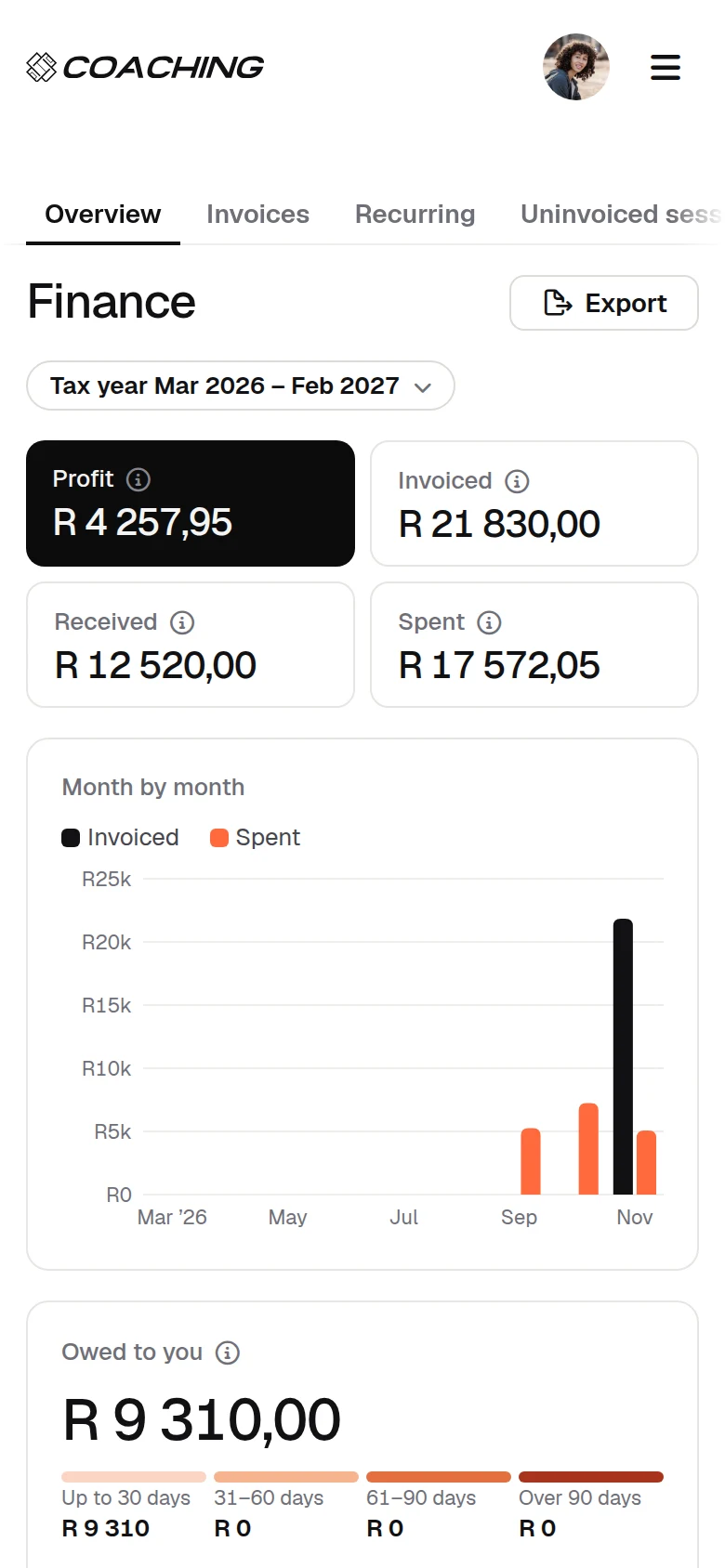
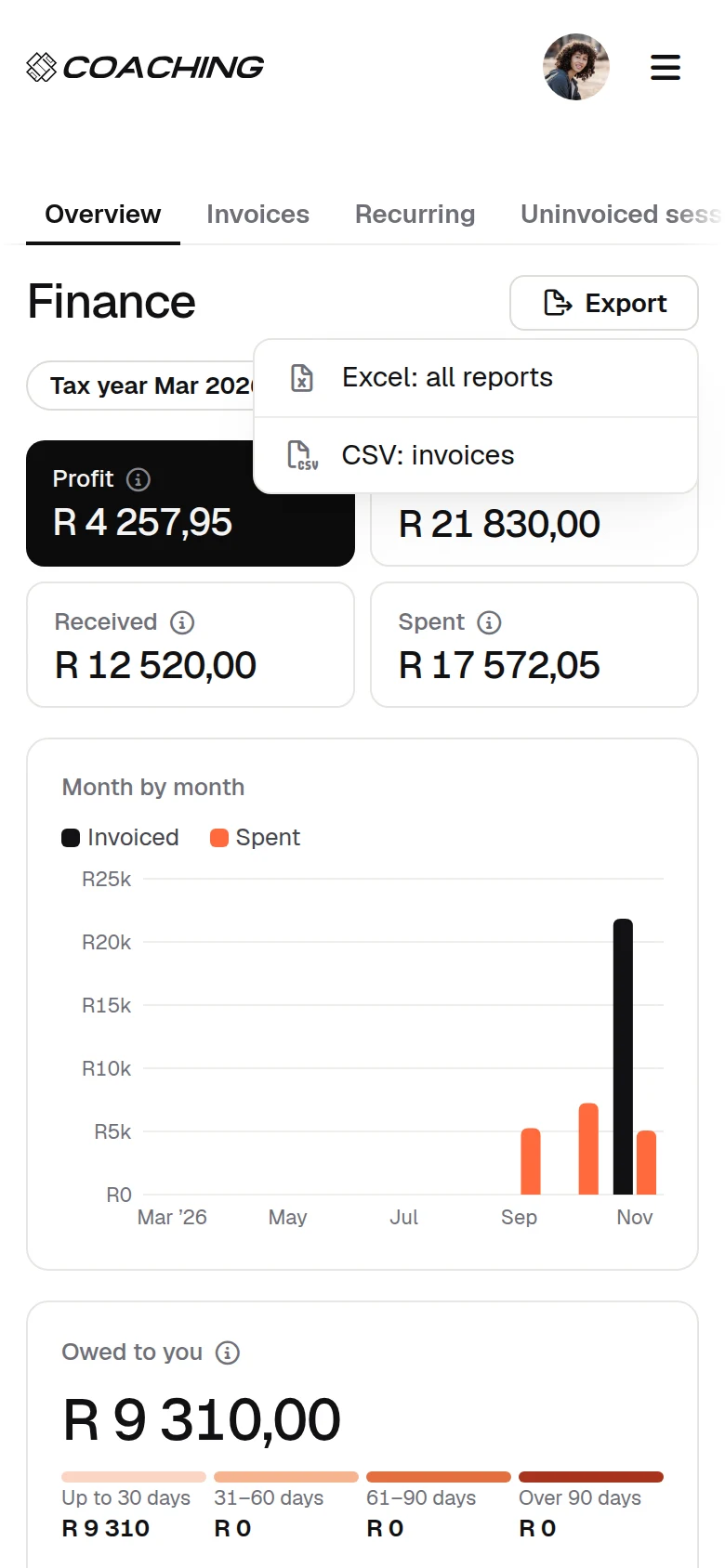
Finance opens on your tax year so far. Pick this month, last month, last tax year, a VAT period or your own dates.
- Profit: what you invoiced, less what you spent.
- Invoiced, received and spent.
- Each month in a chart: tap one for its numbers.
- Owed to you, by how old it is: up to 30 days, 31 to 60, 61 to 90, and over 90.
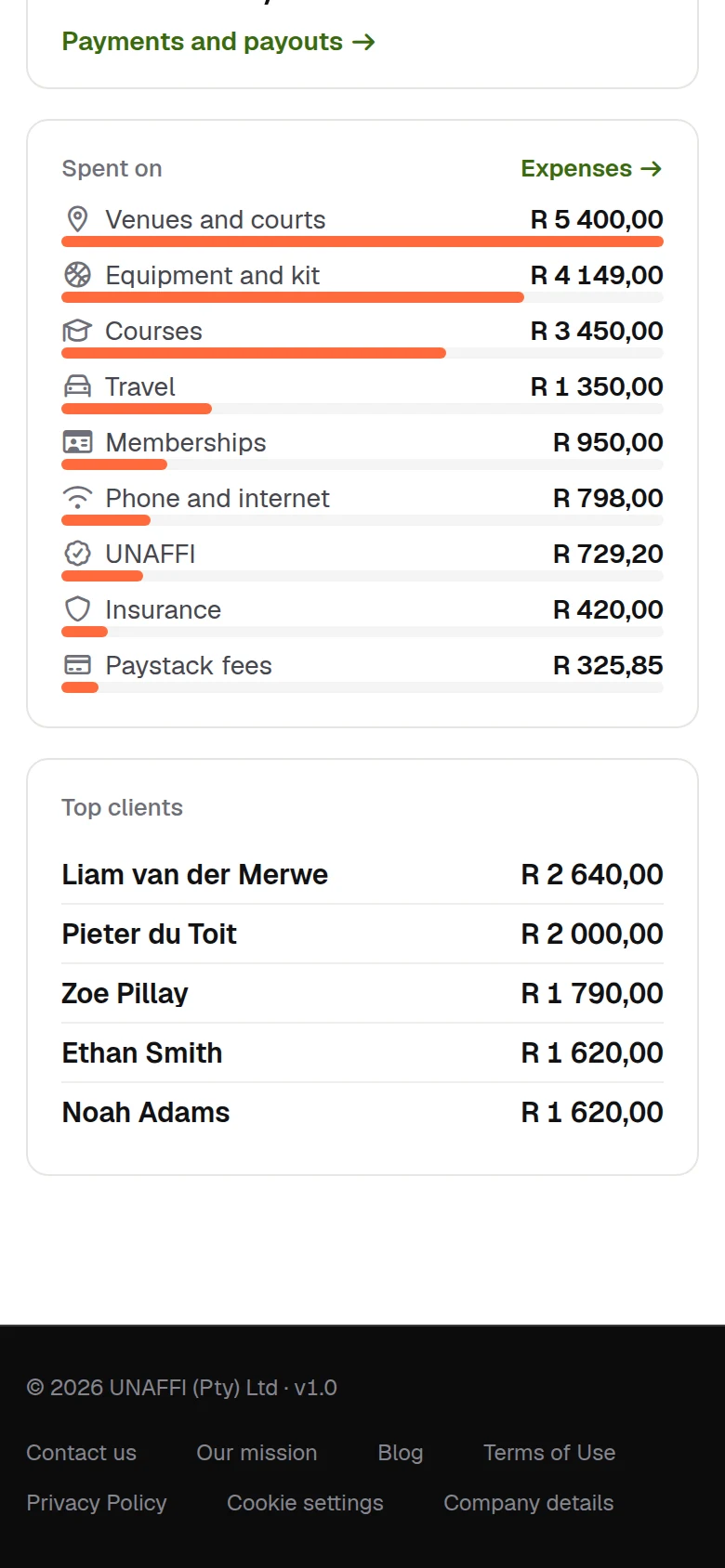
- What the money went on, and your top clients.
- Your VAT, if you're registered.
2. Add your expenses, with the receipt
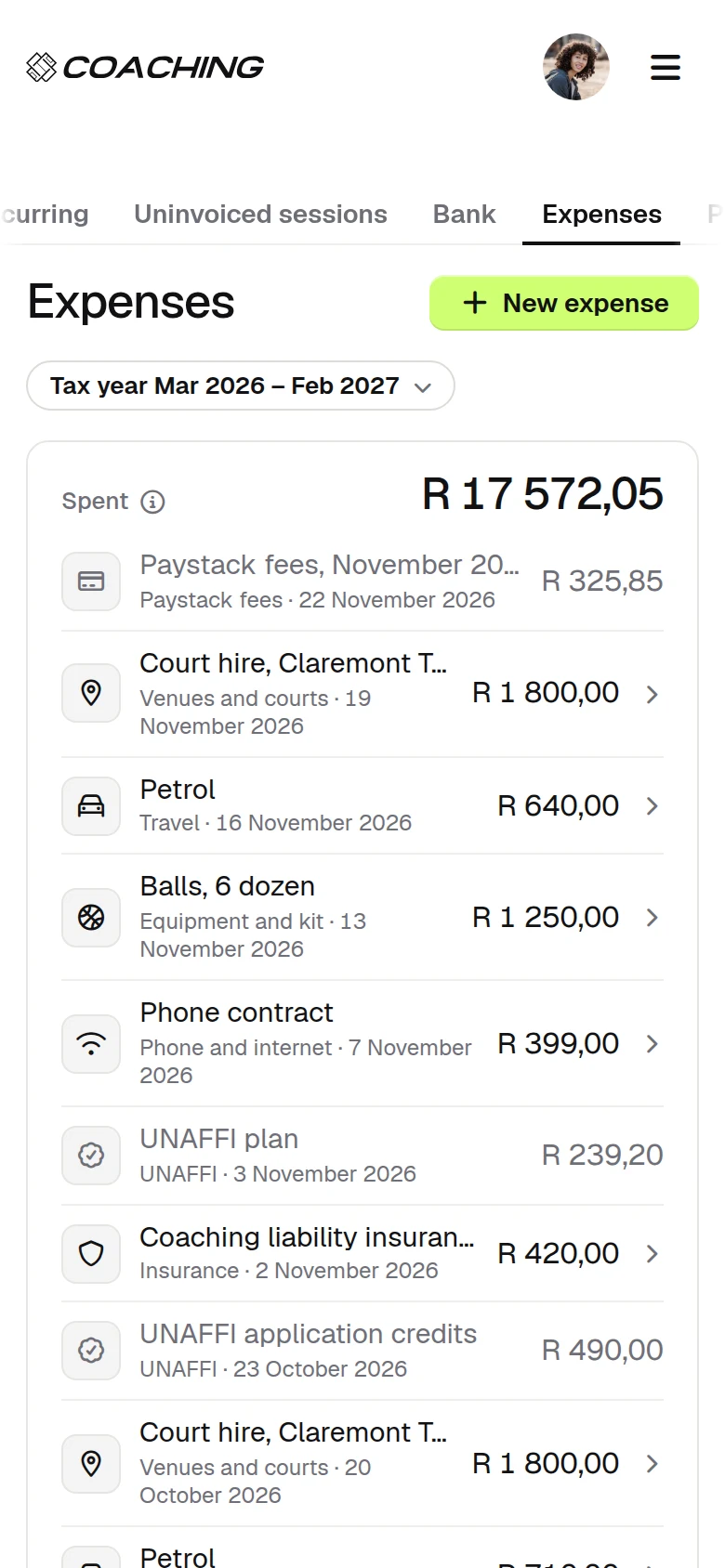
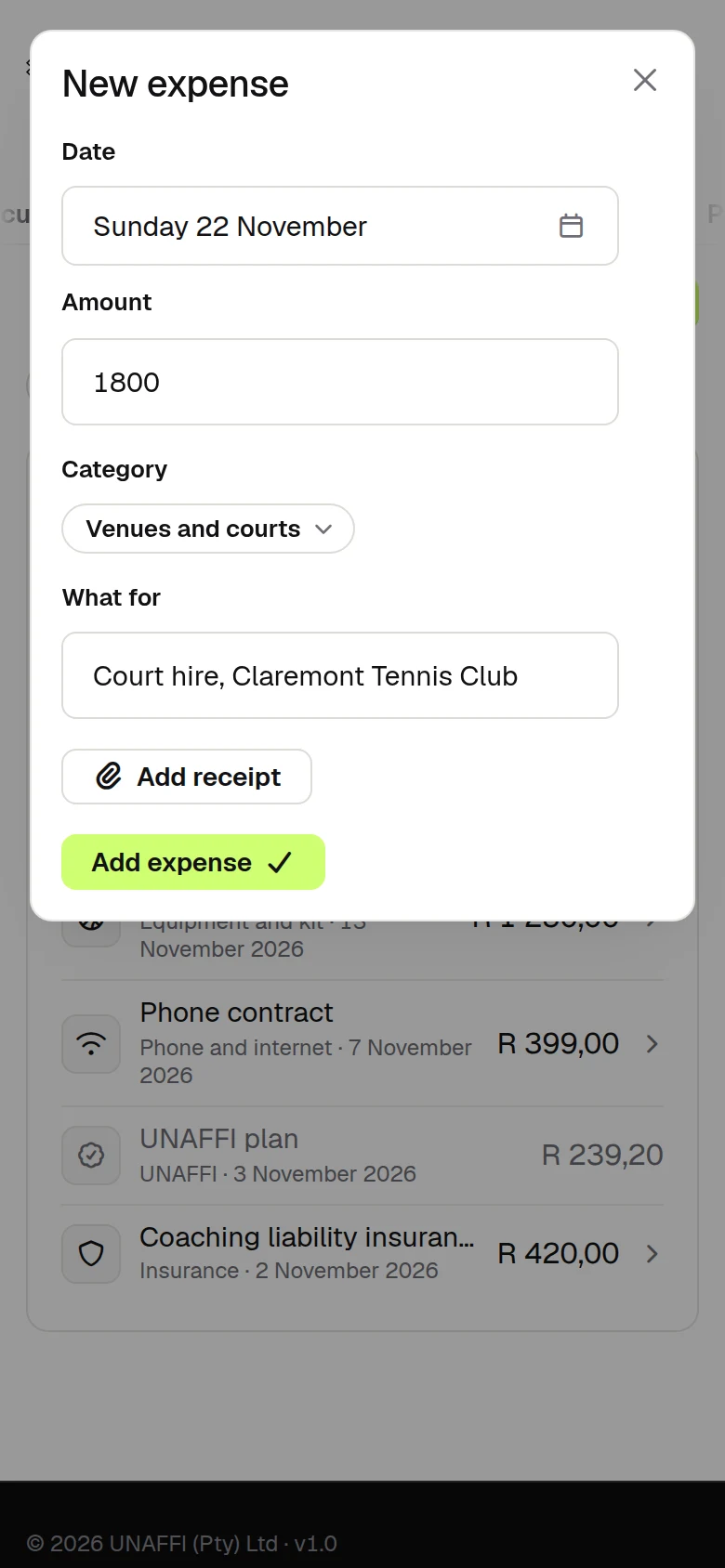
Under Finance › Expenses, press New expense: the date, the amount, what it's for, and a photo or PDF of the receipt. Court hire, balls, petrol, courses and your federation's membership each have a category.
Paystack's fees, your UNAFFI plan and credits and, for a team, what it pays its coaches are added for you.
Coach for a team that pays you through UNAFFI? Its invoices from your coaching are under Finance › From teams. Paystack pays them into the bank account under Finance › Settings, its fee off what you receive. Paid another way? Mark it paid. They count in your own Invoiced and Received too.
3. Sort your bank statement
Under Finance › Bank, add your bank account with its balance on the day your books start. Then download your statement from your online banking as OFX or CSV, and load it.
Every line, money in and out, gets one home, so nothing is counted twice:
- Invoices a client paid by EFT. Their customer code in the reference ticks their unpaid invoices for you, oldest first. A payment that's less than an invoice can pay part of it, and one you marked paid by hand already is tied to the line instead of being marked again. Paid in a few EFTs? Tick the lines and press Sort to invoices to sort them together.
- Paystack payouts, for invoices paid online.
- An expense: one you added already, or a new one made from the line.
- Coach pay for a team, and your UNAFFI plan.
- Other income, like sponsorship or kit sales, a transfer between your accounts, or money that isn't the business's.
Suggestions are ticked for you, and rules learn what your bank fees look like. When every line is sorted and the balance matches your bank's, Reconcile locks it up to that day.
4. Export it for your accountant
Press Export on Finance for the period you're looking at. Excel gives one file with a sheet for each report:
- a summary, and each month;
- an income statement (profit and loss) and a trial balance;
- if you're a VAT vendor, your VAT for each VAT period;
- every invoice, cancelled ones marked void;
- every payment, with Paystack's fee;
- every expense, and whether it has a receipt;
- who owed what at the end of the period, by age;
- each client's invoiced and paid;
- your money at Paystack: payments, fees and payouts.
Or export just your invoices as CSV.
5. Already use Xero, Sage or QuickBooks?
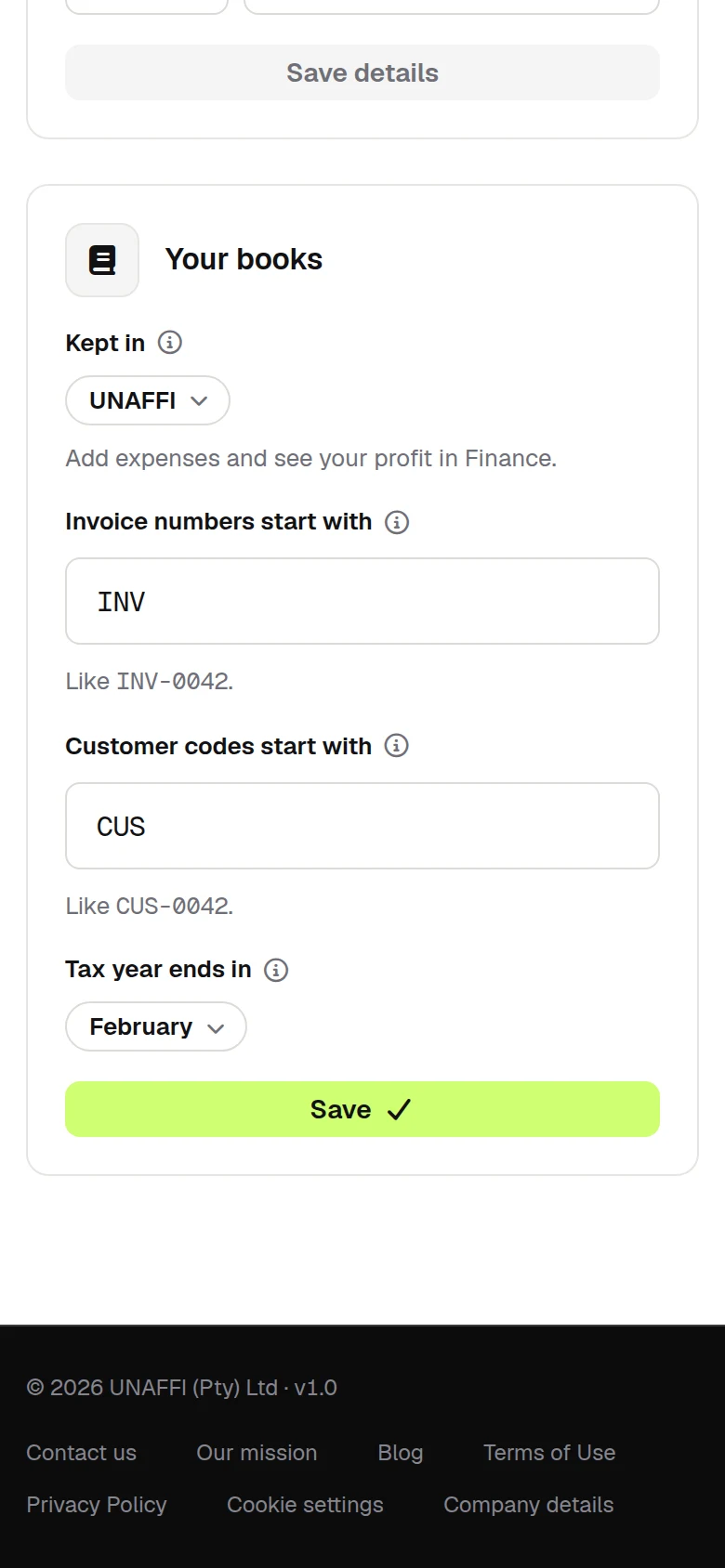
Bigger businesses often keep their books elsewhere. Say which under Finance › Settings › Your books. Expenses then stay in your accounting software, Overview shows what you invoiced, received and are owed, and Paystack's fees, rather than a profit, and Export adds its imports:
- Xero: invoices, for Xero's invoice import. Choose "tax inclusive" when you import. Each invoice goes to the income account code you set.
- Paystack statement, for a "Paystack" bank account in Xero, Sage or QuickBooks: each payment in, Paystack's fee on it, and each payout to your bank.
Your invoice numbers can start with your own letters, like UNF-0001, so they never clash with numbers already in your books. Invoices you've already made keep theirs.
6. Your tax year and VAT
Your tax year ends in February, as SARS's does, unless you change it. A company with another year end chooses its month. If you're registered for VAT, choose whether it's due on invoices or on payments, and your VAT periods (every two months, or monthly). Overview then offers each VAT period.
What it costs
Finance comes with every plan, with your invoicing. See the plans.
Questions
Do I still need an accountant?
UNAFFI keeps your records: every invoice, payment and expense, and the reports built from them. Your accountant still does your tax return. Export the year for them in one file, so they don't have to piece it together.
How is profit worked out?
What you invoiced in the period, plus other income from your bank (sponsorship, kit sales), less what you spent in it: your expenses, Paystack's fees, coach pay for a team, and what you pay UNAFFI (your plan and credits). If you're registered for VAT, they all leave out the VAT. It's before income tax.
Does UNAFFI connect to my bank?
Not directly. Download your statement from your online banking as OFX or CSV and load it under Finance › Bank. UNAFFI never has your banking login, and you choose what every line is.
Can I use it with Xero, Sage or QuickBooks?
Yes. Say where you keep your books under Finance › Settings. Export your invoices for Xero, and your Paystack money as a bank statement for Xero, Sage or QuickBooks. Give your invoices their own prefix, like UNF-0001, so they never clash with your other numbers.
Does it work out my VAT?
If you're registered for VAT, Overview shows the VAT you charged, the VAT you can claim back (from expenses with tax invoices, coach pay and Paystack's fees) and the difference, for each VAT period. Choose whether VAT is due on invoices or on payments.
Who can see my finances?
You and your admin, if you have one, or for a team its owners and admins. Coaches in a team don't see the team's finances: what a team pays them shows in their solo coaching, under Finance › From teams.