Put your training programs and clock on the TV at your gym
Write a session’s workout once, show it on the TV with its AMRAP, EMOM or Tabata clock, run it from your phone, and log scores to a whiteboard.
Write a session's workout once, as a program, and put it on the TV at your gym, studio or courts: one part at a time, big enough to read across the room, with its clock and the scores as they come in. You run it from your phone. The rest of the time, your TVs advertise what's coming up.
1. Write a program
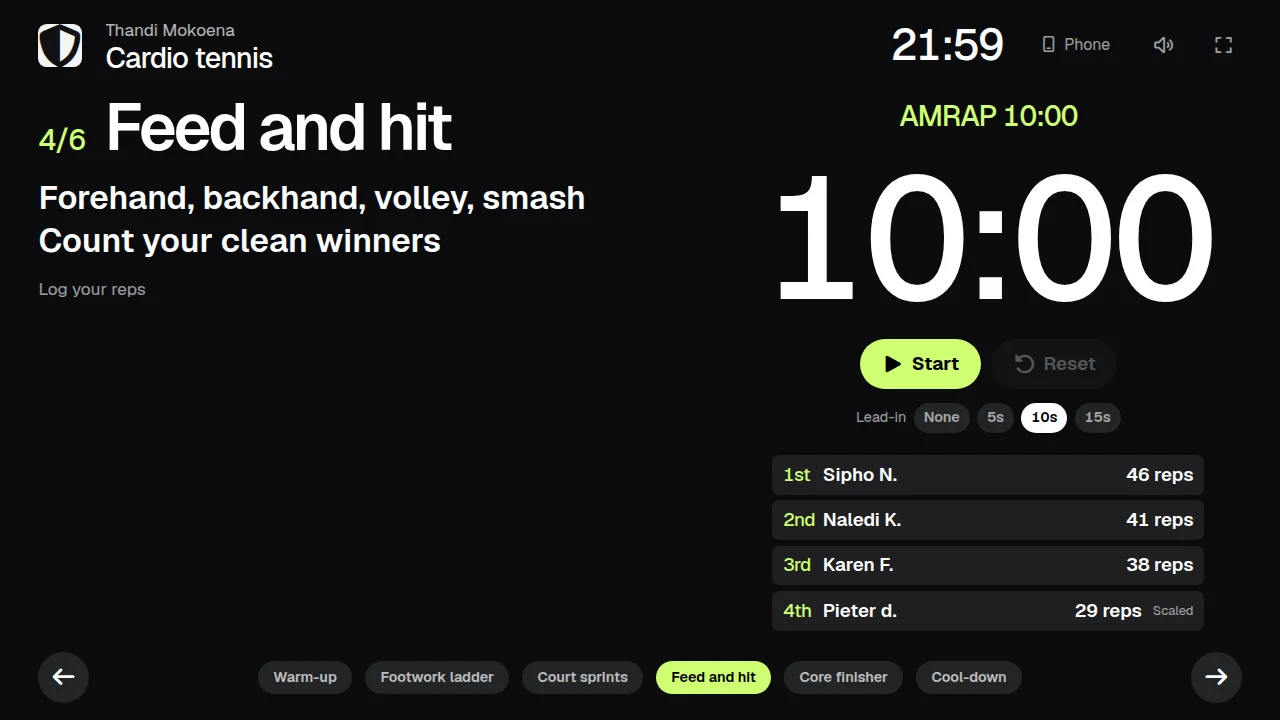
Under Schedule › Programs, for everyone who coaches with you. A program has:
- A warm-up and a cool-down.
- Parts, each with what to do, a clock (AMRAP, For time, EMOM, Tabata or a countdown), how it's scored (time, rounds and reps, reps, load, distance, calories, done, or not at all) and a video link if you like.
- For the people doing it: notes they see. Coaches' notes they don't.
Copy makes another from it, for next week. Pick a program on a session, or a whole repeat, under Program when you edit it.
2. Put it on the TV
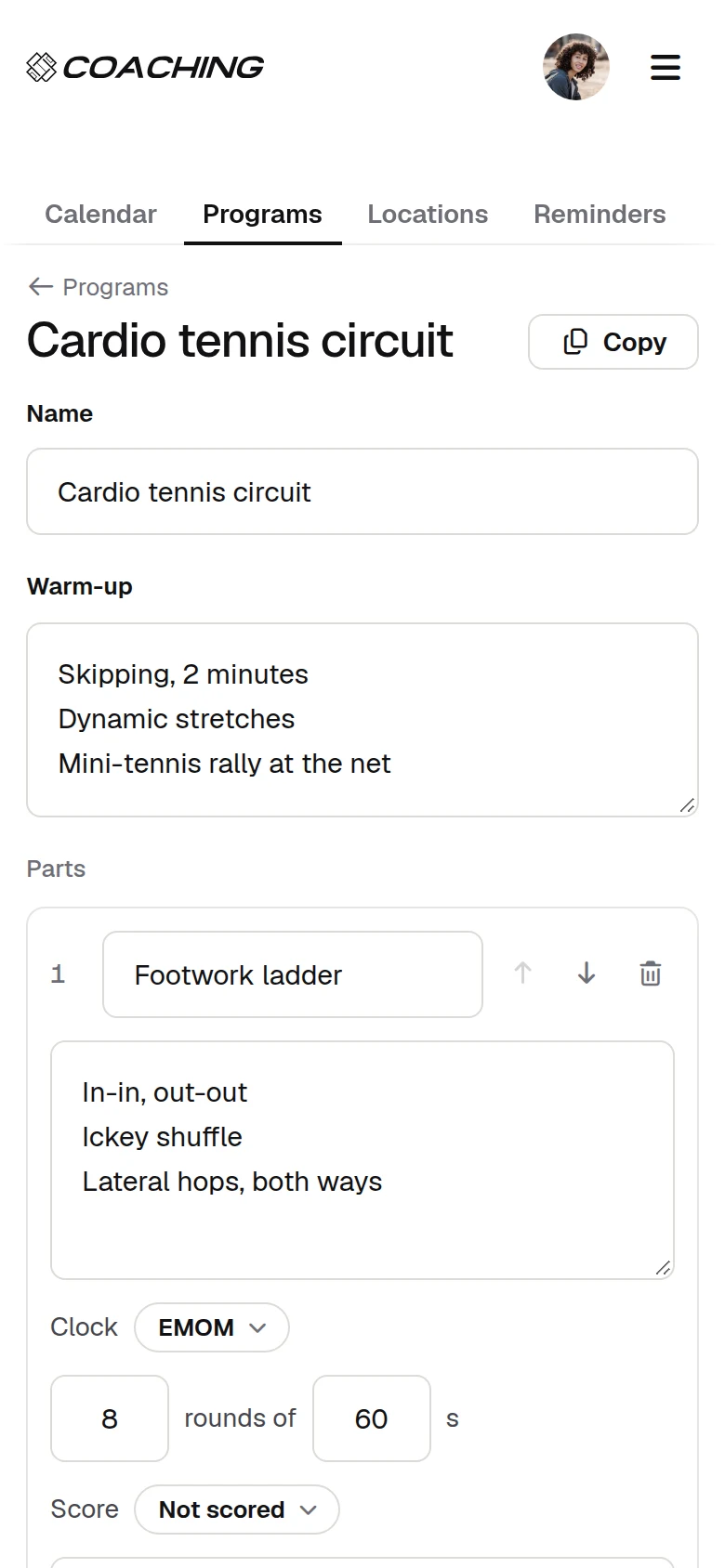
On the TV, open coaching.unaffi.com/tv: in a smart TV's or TV stick's web browser, or on a laptop plugged in with HDMI (then full screen: F11, or F). It shows a code and a QR code. Scan it with your phone, signed in as the team's owner or an admin, and pick which TV it is, or give it a name (Studio 1, Reception). Or type the code into that TV's box under Schedule › Programs. The TV shows your slides straight away, and remembers it: leave it on.
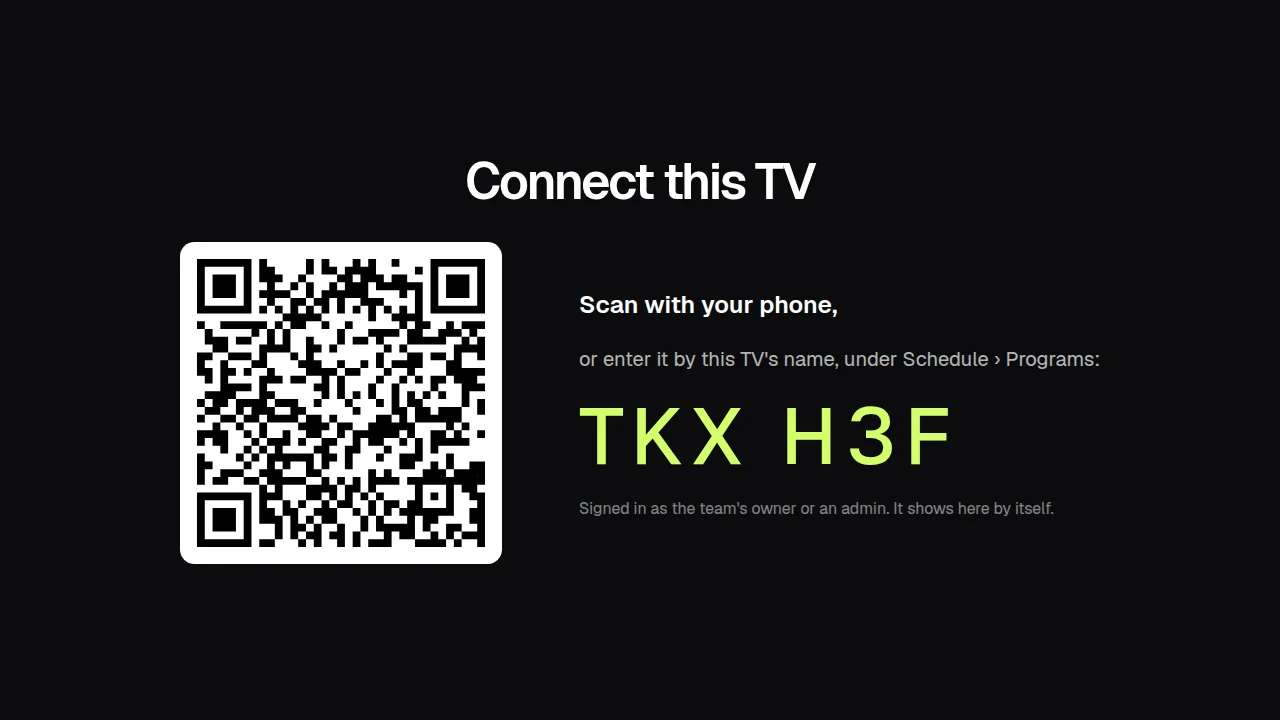
A tap, the mouse or the remote shows a bar for a few seconds: the TV's name, Full screen, Sound and Disconnect. Casting instead? Open coaching.unaffi.com/tv in Chrome, connect it, and cast the tab to a Chromecast. A TV gone or lost? Disconnect by its name under Schedule › Programs sends it back to a code. One TV on Free and Coach, up to 5 on Team, up to 10 on Academy and up to 20 on Unlimited.
3. Run it from your phone
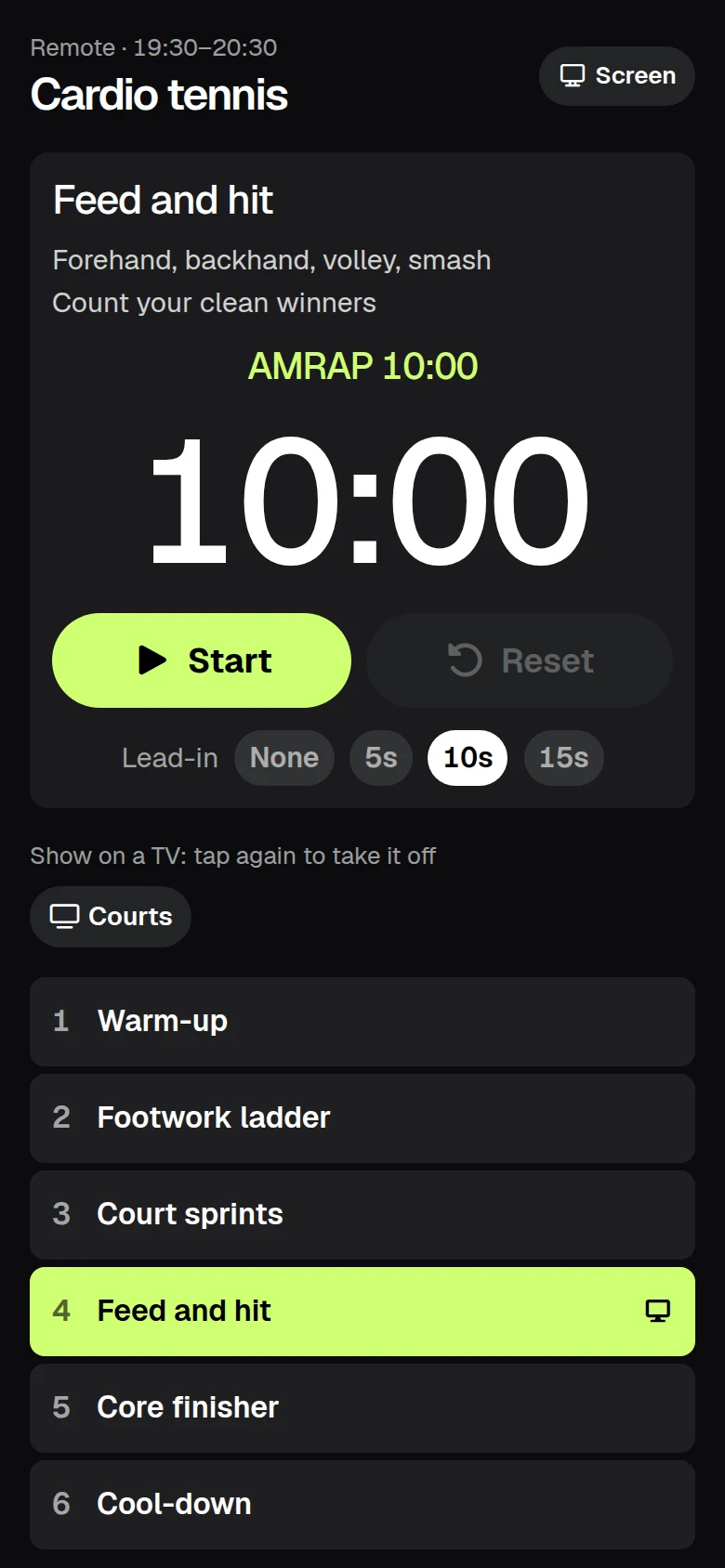
Once a TV is on, you never need to touch it. Show on TV on a session (in its details, or on its Remote) lists your TVs: tap one and it shows the session straight away, before it starts say, program or not. Tap it again to take it off and it's back to the slides; it goes back by itself when the session ends. Two classes at once? Put each on its own TV.
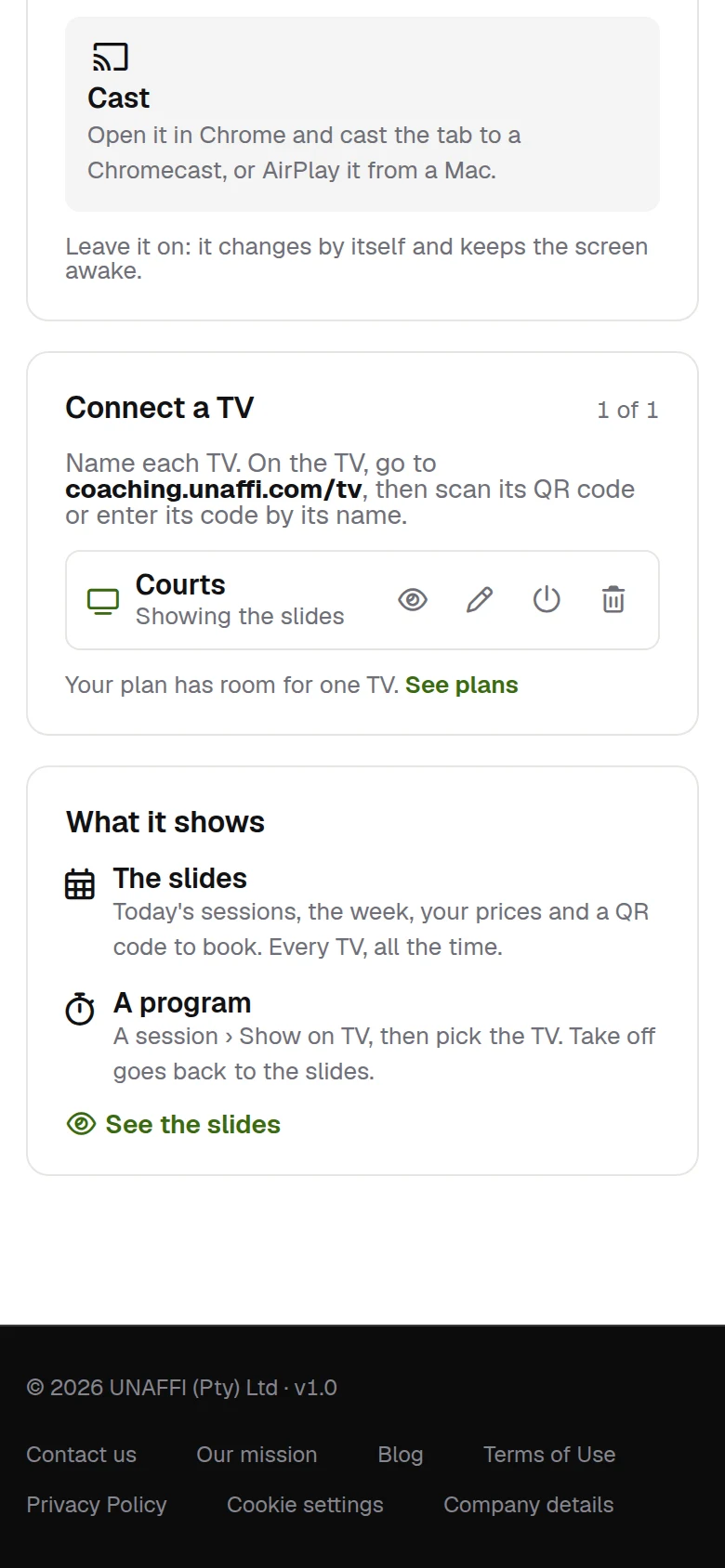
Open the session's Remote on your phone (or scan the QR code under Phone on its screen). Start, pause and reset the clock, set its lead-in (none, 5, 10 or 15 seconds), and move between parts. The TV follows straight away, and so does every other screen showing it.
UNAFFI keeps the clock with the session, so a refresh doesn't lose it: the screen comes back on the same part, at the same time. With sound on, it beeps over the last three seconds and at each change.
No TV connected? Open screen on a session opens it on any screen you're signed in on, a projector say: arrows (or ← and →) for the parts, space to start and pause, R to reset, F for full screen.
4. Log scores
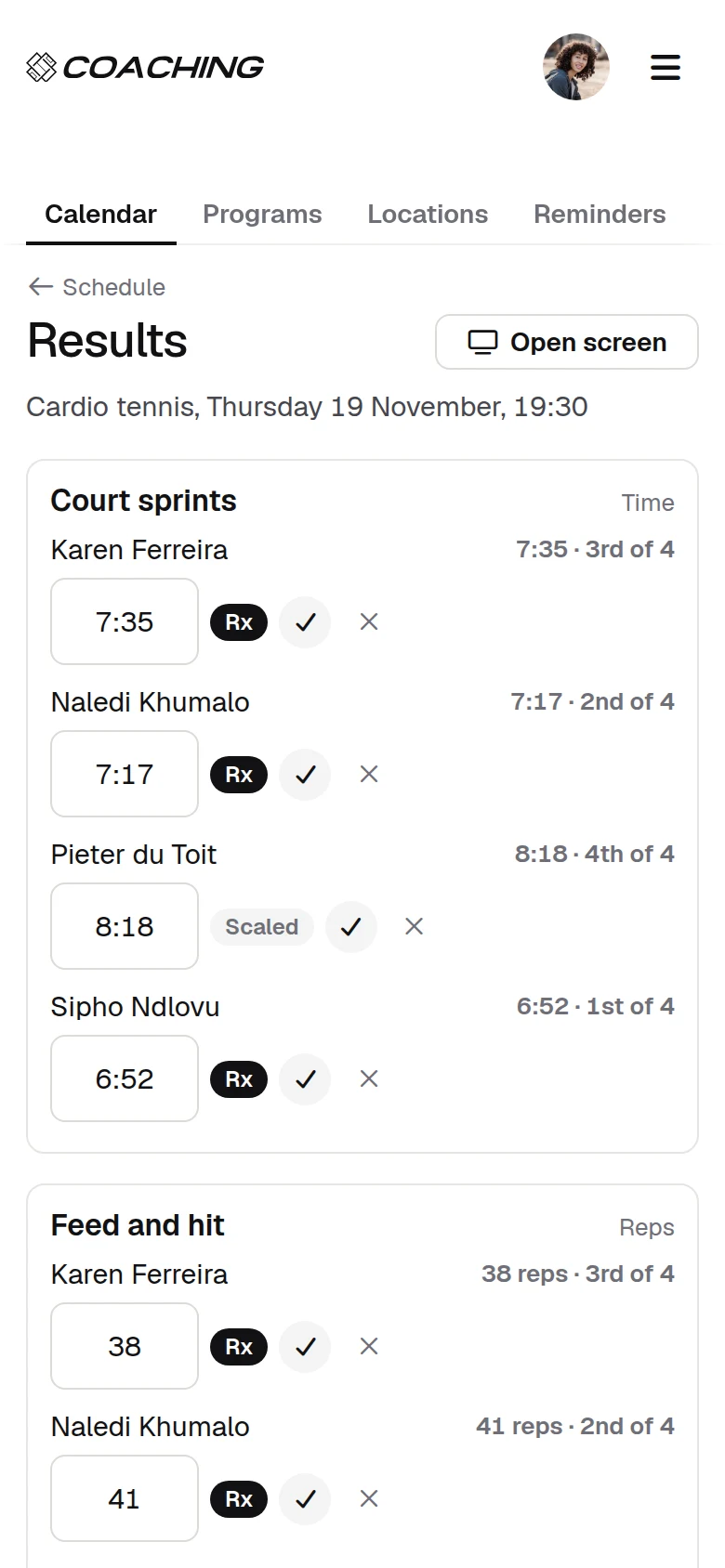
Results on a session lists its scored parts and who's on it: log each person's score, and whether they did it as written (Rx) or Scaled. The TV's whiteboard shows the top 10, Rx first, as they come in. Linked clients see the program from the session's day in My coaching, and log their own; each person's results are on their client page.
5. Between sessions, it advertises
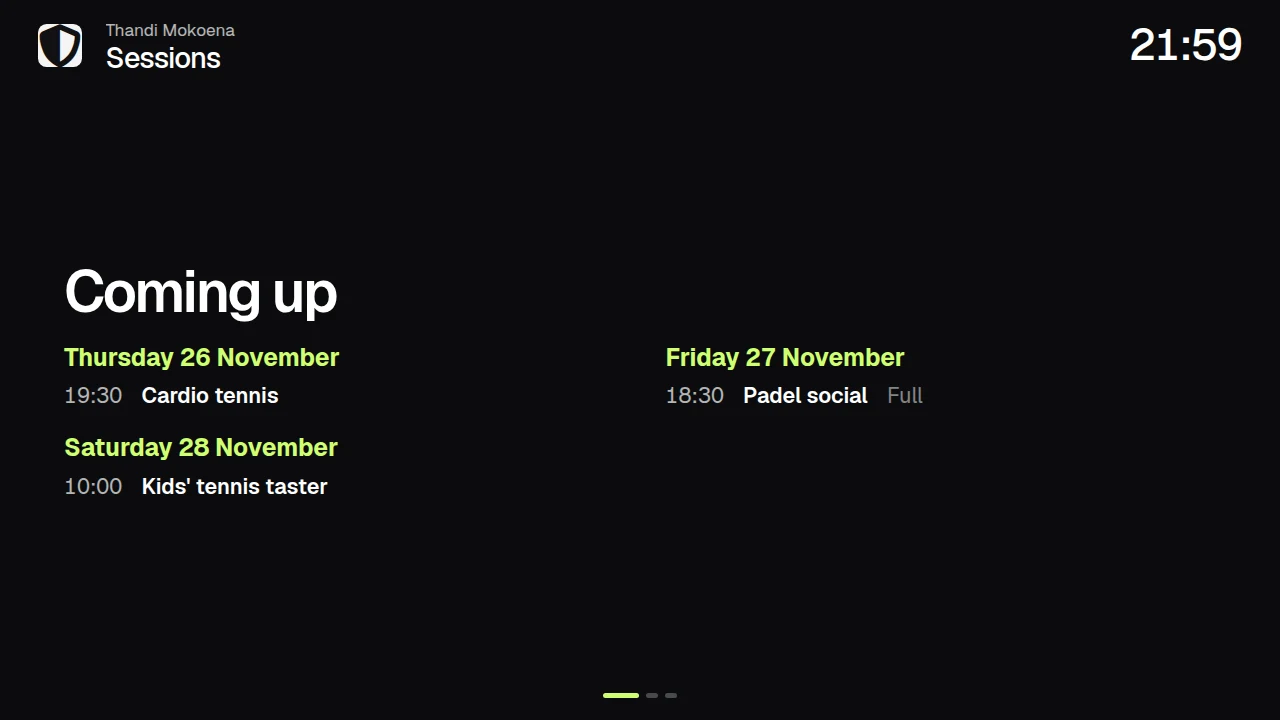
When there's no session on, the TV shows slides that change every 12 seconds: today's public sessions, the ones coming up, your prices, and a QR code to your page to book. See the slides under Schedule › Programs shows them any time.
Questions
How do I get it onto the TV?
Open coaching.unaffi.com/tv on the TV: in a smart TV's or TV stick's web browser, or on a laptop plugged in with HDMI. It shows a code and a QR code: scan it with your phone, signed in as the team's owner or an admin, and pick which TV it is (Studio 1, Reception), or type the code into that TV's box under Schedule › Programs. The TV shows your slides from then on, and remembers it. Leave it on: it changes by itself and keeps the screen awake.
Which clocks are there?
AMRAP (as many rounds as possible, counting down), For time (counting up, to a time cap), EMOM (every minute on the minute, or any interval, for so many rounds), Tabata (work and rest, for so many rounds) and a countdown. A part without one gets a stopwatch. Each has a lead-in of none, 5, 10 or 15 seconds.
What if the screen refreshes or the Wi-Fi drops?
The clock carries on. UNAFFI keeps it with the session, so a refreshed screen, a second screen, the TV and every coach's phone all show the same part and the same time.
How do I put a session on a TV?
Show on TV, in the session's details or on its Remote, lists your TVs: tap one and it shows the session straight away, before it starts say, program or not. Tap it again to take it off and it's back to the slides; it goes back by itself when the session ends. Anyone who coaches with you can.
Can I have more than one TV?
Yes: one on Free and Coach, up to 5 on Team, up to 10 on Academy and up to 20 on Unlimited. Name each one (Studio 1, Studio 2, Reception). Each shows the slides until a coach puts a session on it, so two classes can each follow their own program while reception keeps showing your sessions and prices.
Can I run the clock from my phone?
Yes. Open the session's Remote (or scan the QR code under Phone on its screen): start, pause and reset the clock, set its lead-in, and move between parts. The screen and the TV follow straight away.
Do my clients see the program?
Clients linked to their UNAFFI account see the program of a session they're on from its day, under My coaching, with its notes for them (never your coaches' notes), and can log their own scores. They never see anyone else's.
What does a TV show when no session is on it?
Slides that change every 12 seconds: today's public sessions, the ones coming up, your prices, and a QR code to your page to book.